Monday, August 20, 2012

Installing Jelly Bean ROM to Galaxy Tab 10.1

Samsung is taking its time in making ICS available for Galaxy Tab 10.1. Since JellyBean has come out since June 2012, it will probably taking another year to get a JellyBean update from Samsung. Looking in the internet, there are JB (JellyBean) custom ROMs available for the Tab. Since running Honeycomb is really aggravating, lagging, and quite a pain - I decided to take the plunge, root, and install custom ROM. Another option is to just get a Nexus 7 device - which will cost $200 more than installing custom ROM.

So in this post, I will describe the step by step process in installing JB ROM into my Tab (from stock Honeycomb). Please note that there are risks involved when one is doing this - that one may "brick" the device, or the installation may fail and require further troubleshooting etc. So do it on your own risk - no guarantees from me. My experience was that the installation was smooth and without any glitch whatsoever. Please do not skip any steps - also make sure your battery is full or almost full. Part of the steps is wiping the data. So if you do not want to lose any data, make sure you back it up first. 


1. ROOT (if yours is already rooted, you can skip this step)
Follow the steps from xda-developers here for rooting your device. The link above even has a video step-by-step guide.

2. OPTIONAL
At this point, I purchased ROM Manager App from the Google Play and update Clockwork Recovery to the latest version. 

3. INSTALL JB
  1. Download 2 sets of files from xda-developers, look for the section like the image on the right:
    1. The custom ROM (select the one that applies to you)
    2. Google Apps
  2. Copy the JB package (both the ROM and the Google Apps zip files) to your tablet’s internal Tab memory
  3. Turn off Tab.
  4. Go to ClockworkMod Recovery by turn on the Tab while holding the Volume Up button. 
  5. When the screen turns on, release the Power button but hold the Volume Up button until a menu shows up on the screen. 
  6. Press Volume Down to select the recovery mode icon and then, press the Volume Up button to enter recovery.
  7. Create a backup of your current ROM. Select "backup and restore". Select "backup" again. This will initiate the backup process. Once it's done, select "go back" to go back to main menu.
  8. Select "wipe data/factory reset" (and confirm)
  9. Select "wipe cache partition" (and confirm)
  10. Select "advanced" -- "wipe dalvik cache" (and confirm)
  11. Select "mounts and storage" -- "format / system" (and confirm). Once done, go back to main menu
  12. Select "install zip from sd card" -- "choose zip from sd card" and select the JB zip file and then confirm selection. The ROM installation will start. 
  13. Select "install zip from sd card" -- "choose zip from sd card" and select the Google Apps zip file and then confirm selection. The Apps installation will start
  14. Once done, select "go back" to the main menu and then select "reboot system now". DONE!
-- read more and comment ...

Wednesday, August 1, 2012

How to Remote Desktop to Win7 Home

In Windows 7, you can only Remote Desktop to Windows 7 Pro, Enterprise, or Ultimate. So, for most of home users who have Windows 7 Home Premium, there is no RDP into it. Just to be clear, all Windows 7 versions can initiate a connection, but only Pro, Ent, and Ultimate can host (read here for more).

So, one of my desktop that I use for Media Center is running Home Premium - and from time to time I do need to login to it to run updates, install drivers, troubleshoot, etc. Yes, I can do it from the TV, but that means putting keyboard & mouse - which I don't want to. There is a "hack" - which basically installing the host executable in the PC - but somehow when I tried, it did not work - although the forum chatter seems to indicate that this should be relatively easy. So anyway, I decided to just put a keyboard & mouse for the time being. Until about 2 months ago, when I discover Chrome Remote Desktop (BETA)!

What is Chrome Remote Desktop? It is a Chrome extension (a plugin for Chrome browser) that enables a computer (PC or Mac) with Chrome that also has the Chrome Remote Desktop extension installed to RDP to each other. So in my case, I just installed Chrome browser and then the extension in my Media Center PC. Run the extension, it asked for my permission, give it a password, and it's ready. Then I also installed the same extension on my main PC in my office. Run the extension and - VOILA - I can RDP to my Media Center PC (running Win7 Home Premium)!

Here is the step-by-step:
If you do not have Chrome installed, go download & install it here. Go to Chrome Web Store and search for "remote desktop" and you should see result like this:


Click "ADD TO CHROME" and the download & installation of the extension should start. When it's done, you will see the Chrome Remote Desktop app icon shows up in your Chrome Apps.

Running the app for the first time, it will prompt you for allowing it access your computer. Click "Continue" here and then "Allow access" on the next screen.


Once you allow access, now it's ready to be setup for use. Click the "Get started" button.

To enable your computer to be connected to, click the "Enable remote connections" button. You will be asked to enter a PIN, which you will use every time you need to connect to the computer.


That is it - now it's ready! If you install and enable remote connections in more than 1 computer, they will get added the list automatically. The list is tied to your Google account (GMail/Google+). 

Now do the same steps above in a different computer, now you have 2 PCs that are able to RDP to each other via web. Here is the kicker: since this is via port 80, or http, this means one does not need to tweak firewall rules, install special VPN software, get dynamic DNS address, etc. As long as the computer is turned on, the Chrome extension will manage all the plumbing underneath. All you need is a broadband connection, Chrome browser & extension, and your setup/PIN.
-- read more and comment ...

Sunday, July 29, 2012

I am going PREPAID cellular plan ...

Currently, with T-Mobile, I am paying $49.99 family plan, which gives me 2 lines, 500 minutes, free T-Mobile to T-Mobile calls, free nights and weekends. I pay extra for my 5GB data plan ($25) and my wife is using the 200MB ($12). Plus another $4.99 for each messaging plan. So overall, I am paying around $100 per month. My family plan is an old plan (grandfathered), so I also get the full discount for new devices in I choose to extend the 2 year contract.

Now, my plan is not bad at all, $100 for 2 persons - it is actually considered to be quite awesome - since most my friends who have newer plans on T-Mobile (or other carriers) usually pay between $80 or more per person. So basically almost half of what most of my friends with smartphones are paying.

Now, let's consider the overall ownership cost over 2 years - since that is the length of the standard cellphone contract. If I pay $279 for each device (assuming Samsung Galaxy S3), add the monthly payment, over 2 years, I am paying about $2,950+. Of course, that is cheaper than my friends who is paying $110 per month for their family plan. But, I plan to reduce the overall cost some more. How? By going PREPAID!


To each their own, but after assessing my needs (getting some stats from my bills for the last 6+ months), I think getting the Monthly 4G plan for $30 will be sufficient for me (and my wife). This plan will get me 5GB data, unlimited text and 100 minutes voice. So for both of us, that will be $60 per month - without contract. There is a drawback to this - that if I buy a new device, I have to pay full price without any discount. So that means $600 for Samsung Galaxy S3. So in short, no contract, I am paying cheaper per month, but paying 3+ times IF buying a new device. But what is the overall 2 years cost of ownership? Let's assume we both buy GS3 and paying $30 Monthly 4G plan - which totaling $2,640 - a saving of $300 over 2 years. It looks a small saving on paper, but in reality, it is actually a pretty good deal. Let's list down the benefit:
  • No contract. Only pay as needed. So the potential saving here is actually larger. If I think for the next month that I will be in a WiFi bubble, I may switch to $10 pay as you go ans save some more. If I am traveling, I can switch back to the Monthly 4G etc. 
  • In a contract deal, if I am not getting a new device once my contract is up - this means that I am giving free money to the carrier, since the cost of the phone is factored in the monthly bill. With no contract prepaid, I don't have that burden. This also means that if I elect to switch carrier or get a new cellphone/device, I don't have to wait until the contract is done.
  • My wife data plan will get an upgrade, from 200MB per month to 5GB. Now, I am assuming that she needs that 5GB - if she does not (because of WiFi), she can switch to a cheaper pay-by-the-day based on usage.
  • From 300 texts per month to unlimited texts. This is also assuming we need that. I mostly do not need it, but there is no plan with voice and data only. 
  • If spending $100 or more in 1 year, get a Gold status, which means 15% more minutes and your minutes can be used for a full year (instead of the regular 90 days).
  • No overages!
So overall, I am fairly convinced (for now) that the prepaid/Monthly 4G will save me some money but still fulfill my need for mobile communication.

T-Mobile also has Pay-As-You-Go plan (for voice prepaid) and Pay-By-The-Day plan (for use only when needed). Depending on your needs, these plans can potentially be cheaper than the Monthly 4G plan that I am planning to use.


Microsoft Windows engineer John Lam also has a similar story in his blog
-- read more and comment ...

Monday, July 9, 2012

SQL Tuning Scripts

While tuning the SQL database for the project I am working on, I found these scripts by Brent Ozar that were extremely useful. These scripts rely on DMV on your SQL instance - so they are best run after you let your SQL databases run for a while and DMV data got flushed after a reboot. Brent also created videos explaining these scripts. Please note that all these scripts are Brent's creation - not mine.


FIND MISSING INDEXES
In the result, the "impact" column is the indicator how needed the index is. Brent recommends that 10 million or higher number means high - that the index is needed.
/* ------------------------------------------------------------------
-- Title: FindMissingIndexes
-- Author: Brent Ozar
-- Date: 2009-04-01 
-- Modified By: Clayton Kramer ckramer.kramer(at)gmail.com
-- Description: This query returns indexes that SQL Server 2005 
-- (and higher) thinks are missing since the last restart. The 
-- "Impact" column is relative to the time of last restart and how 
-- bad SQL Server needs the index. 10 million+ is high.
-- Changes: Updated to expose full table name. This makes it easier
-- to identify which database needs an index. Modified the 
-- CreateIndexStatement to use the full table path and include the
-- equality/inequality columns for easier identifcation.
------------------------------------------------------------------ */

SELECT  
 [Impact] = (avg_total_user_cost * avg_user_impact) * (user_seeks + user_scans),  
 [Table] = [statement],
 [CreateIndexStatement] = 'CREATE NONCLUSTERED INDEX ix_' 
  + sys.objects.name COLLATE DATABASE_DEFAULT 
  + '_' 
  + REPLACE(REPLACE(REPLACE(ISNULL(mid.equality_columns,'')+ISNULL(mid.inequality_columns,''), '[', ''), ']',''), ', ','_')
  + ' ON ' 
  + [statement] 
  + ' ( ' + IsNull(mid.equality_columns, '') 
  + CASE WHEN mid.inequality_columns IS NULL THEN '' ELSE 
   CASE WHEN mid.equality_columns IS NULL THEN '' ELSE ',' END 
  + mid.inequality_columns END + ' ) ' 
  + CASE WHEN mid.included_columns IS NULL THEN '' ELSE 'INCLUDE (' + mid.included_columns + ')' END 
  + ';', 
 mid.equality_columns,
 mid.inequality_columns,
 mid.included_columns
FROM sys.dm_db_missing_index_group_stats AS migs 
 INNER JOIN sys.dm_db_missing_index_groups AS mig ON migs.group_handle = mig.index_group_handle 
 INNER JOIN sys.dm_db_missing_index_details AS mid ON mig.index_handle = mid.index_handle 
 INNER JOIN sys.objects WITH (nolock) ON mid.OBJECT_ID = sys.objects.OBJECT_ID 
WHERE (migs.group_handle IN 
  (SELECT TOP (500) group_handle 
  FROM sys.dm_db_missing_index_group_stats WITH (nolock) 
  ORDER BY (avg_total_user_cost * avg_user_impact) * (user_seeks + user_scans) DESC))  
 AND OBJECTPROPERTY(sys.objects.OBJECT_ID, 'isusertable') = 1 
ORDER BY [Impact] DESC , [CreateIndexStatement] DESC

FIND UNDER USED / UNUSED INDEXES
Since index is mainly used for reading, therefore tables that are written a lot but read rarely may be burdened by indexes. This script is useful for finding those tables. Within the result of this script, the "reads_per_write" is the ratio between the read and write to the table. Depending on the current performance, # of read/write, the index may or may not needed. Generally, Brent recommends to remove indexes where "read_per_write" is below 1.
SELECT 
o.name
, indexname=i.name
, i.index_id   
, reads=user_seeks + user_scans + user_lookups   
, writes =  user_updates   
, rows = (SELECT SUM(p.rows) FROM sys.partitions p WHERE p.index_id = s.index_id AND s.object_id = p.object_id)
, CASE
 WHEN s.user_updates < 1 THEN 100
 ELSE 1.00 * (s.user_seeks + s.user_scans + s.user_lookups) / s.user_updates
  END AS reads_per_write
, 'DROP INDEX ' + QUOTENAME(i.name) 
+ ' ON ' + QUOTENAME(c.name) + '.' + QUOTENAME(OBJECT_NAME(s.object_id)) as 'drop statement'
FROM sys.dm_db_index_usage_stats s  
INNER JOIN sys.indexes i ON i.index_id = s.index_id AND s.object_id = i.object_id   
INNER JOIN sys.objects o on s.object_id = o.object_id
INNER JOIN sys.schemas c on o.schema_id = c.schema_id
WHERE OBJECTPROPERTY(s.object_id,'IsUserTable') = 1
AND s.database_id = DB_ID()   
AND i.type_desc = 'nonclustered'
AND i.is_primary_key = 0
AND i.is_unique_constraint = 0
AND (SELECT SUM(p.rows) FROM sys.partitions p WHERE p.index_id = s.index_id AND s.object_id = p.object_id) > 10000
ORDER BY reads

FIND QUERIES THAT ARE MISSING INDEXES (using Plan Cache)
This is an EXPENSIVE query (not recommended to be run during peak-use-time), running against temporary cached plans.
SELECT qp.query_plan
, total_worker_time/execution_count AS AvgCPU 
, total_elapsed_time/execution_count AS AvgDuration 
, (total_logical_reads+total_physical_reads)/execution_count AS AvgReads 
, execution_count 
, SUBSTRING(st.TEXT, (qs.statement_start_offset/2)+1 , ((CASE qs.statement_end_offset WHEN -1 THEN datalength(st.TEXT) ELSE qs.statement_end_offset END - qs.statement_start_offset)/2) + 1) AS txt 
, qp.query_plan.value('declare default element namespace "http://schemas.microsoft.com/sqlserver/2004/07/showplan"; (/ShowPlanXML/BatchSequence/Batch/Statements/StmtSimple/QueryPlan/MissingIndexes/MissingIndexGroup/@Impact)[1]' , 'decimal(18,4)') * execution_count AS TotalImpact
, qp.query_plan.value('declare default element namespace "http://schemas.microsoft.com/sqlserver/2004/07/showplan"; (/ShowPlanXML/BatchSequence/Batch/Statements/StmtSimple/QueryPlan/MissingIndexes/MissingIndexGroup/MissingIndex/@Database)[1]' , 'varchar(100)') AS [DATABASE]
, qp.query_plan.value('declare default element namespace "http://schemas.microsoft.com/sqlserver/2004/07/showplan"; (/ShowPlanXML/BatchSequence/Batch/Statements/StmtSimple/QueryPlan/MissingIndexes/MissingIndexGroup/MissingIndex/@Table)[1]' , 'varchar(100)') AS [TABLE]
FROM sys.dm_exec_query_stats qs
cross apply sys.dm_exec_sql_text(sql_handle) st
cross apply sys.dm_exec_query_plan(plan_handle) qp
WHERE qp.query_plan.exist('declare default element namespace "http://schemas.microsoft.com/sqlserver/2004/07/showplan";/ShowPlanXML/BatchSequence/Batch/Statements/StmtSimple/QueryPlan/MissingIndexes/MissingIndexGroup/MissingIndex[@Database!="m"]') = 1
ORDER BY TotalImpact DESC
-- read more and comment ...

Sunday, April 8, 2012

Boost Performance Using Caching

Caching is widely used for static files (like javascript files, css, etc). All browser support client-side caching for these static files. IIS also supports server-side caching. Caching done right can tremendously improve web application serving performance exponentially.

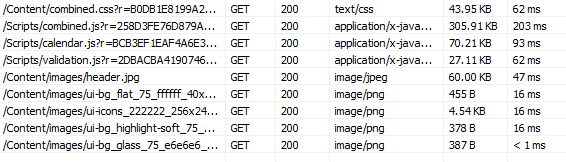
Let's consider this scenario. You have a static html page - let's say this page: http://www.google.com/intl/en/about/index.html. The payload of this page is about 9k bytes. Although it is very small, but payload is still payload. If nothing is cache, every time we go to that page, our browser have to download 9k bytes of data. Now we turn on browser caching, the first time we go to that page, we will download the full 9k bytes of data. But the subsequent visit to that page will load from browser cache. Look at the comparison of network traffic below (the top is the first visit and the below image is the subsequent visit):


The http status code "200" means successful retrieval from the web server and "304" means that content has not been modified therefore doing retrieval from local browser cache. As we see, the data transmitted through the internet or network was 40 times smaller (218B vs 9.5KB) and the time taken is also 5 times faster (47ms vs 203ms) on the subsequent visit. This performance boost is caused by browser caching. Now imagine if we do this to a more complicated page, with all the css files, javascript files, and more images - the performance gain can be quite significant.

There is also a different type of caching called data caching (which I used in application in this blog post about Session variable performance) - which basically means that the application is storing the data retrieved temporarily in memory instead of doing a data retrieval from the database. The benefit of this type of caching is that retrieval from memory is much faster compared to database query/retrieval.

In this post, I will focus on the browser caching and write about data caching in the future post.

Browser caching is actually pretty easy. In short, you need add an "expire" header. The header makes these parts of the website to be cacheable in the client browsers. I usually set an expiration for 30 days after the components were first cache. This means that the first time that component is downloaded into the client browser, it will store itself in the browser cache and reuse it again and again when needed until 30 days have elapsed. On the 31st day, it will discard the cached version and retrieve a new one from the server.

In .NET development, you can set this expiration in a couple ways - by code or via IIS. Both of these approaches will actually do the same thing in the end, so it does not really matter that much, but it's good to know.

If you want to do this by code, put a web.config file in the folder of static files you want to cache. For example, if you have an "images" folder, or "scripts" folder - put this web.config file in that folder. In the screen shot, I have a "Contents" folder, where all my images and css files. Then inside the web.config file, I set the clientCache element with my expiration values.
<?xml version="1.0" encoding="UTF-8"?>
<configuration>
    <system.webServer>
        <staticContent>
            <clientCache 
                cacheControlMode="UseMaxAge" 
                cacheControlMaxAge="30.00:00:00" />
        </staticContent>
    </system.webServer>
</configuration>

If you want to it via IIS, open the website folder that you want to apply and click or highlight the folder of the files that you want to be cached. I am using the same folder as above - the "contents" folder.

Then open/double-click the "HTTP Response Header" feature.

Then click "Set Common Headers..." on the right pane.

This will launch "Set Common HTTP Response Headers" window and you can set the expiration values within this window. Once you hit "OK", what IIS will do is create a web.config file for you - creating the a similar result as the code/manual approach above.

So how is the result - at least for my web application? Here is a screen shot of the payload and timing before caching, or this is the initial load before browser caching takes effect. Totaling 523KB of data for just scripts and image files, taking around 515 ms.
Now, here is the result on the subsequent request, with the caching applied. Totaling 1.8KB of data, taking around 37ms.
So in the end, the payload is 20X smaller and the time is about 14X faster. Quite a big pay off for a small change. Half a second may not seem much, but it does bring a lot of user satisfaction when their experience in using your web application is seamless and without delay. Jeff Atwood wrote excellently in his blog post: Performance is a Feature.

Additional readings:
-- read more and comment ...

Monday, March 19, 2012

Session Variable & Performance

When I was trying to boost the performance of our web application, I typically try to focus on the "bottlenecks" and most of the time these are apparent, especially when using profiler tools (EQATEC, MvcMiniProfiler, etc). But one performance bottleneck really stumped me because none of the tools I use are really showing where the problem is.

The setup is like this: the aspx page loads the main page and javascript - which then makes 2 AJAX calls (using jQuery $.get) to some controller actions which both return ascx view which then injected into the aspx. So basically when the site loads, it hits /Home/Index and then within Index (aspx) view, there are several lines of jQuery that make ajax calls (to /Home/PartOne and /Home/PartTwo to populate parts of the page.

Below is a screen shot from MvcMiniProfiler - which shows a different controller name and action from the generic example above, but with a similar problem:


This measurement shows that there is a 510ms delay/bottleneck happening even before the starting of the execution of my controller's action. For the sake of simplicity in investigating this, the action of the controller actually only returns a list of predefined integers. So in theory, this should be fast - like less than 10ms fast, not 510ms.

Here is a screen shot from PageSpeed that shows where the javascript makes 2 consecutive AJAX calls and although both of these return the same list of integer, one is taking 500ms longer:

When I experimentally put "OutputCache" attribute on "PartTwo", it behaves as expected, that it was executing fast. This hints that the problem is not in IIS, but somewhere after that and before it hits my action method.

Here is the code for my controller - which is bare-bone basic and you should not expect problems with it:
public class HomeController : Controller {
    public ActionResult Index() {
        return View();
    }

    public ActionResult PartOne() {
        List<int> list = new List<int>() { 1, 2, 3, 4, 5 };
        Session["mylist"] = list;
        return View(list);
    }

    public ActionResult PartTwo() {
        List<int> list = Session["mylist"] as List<int>;
        return View(list);
    }
}

Here is my javascript code to load the parts:
$(document).ready(function () {
    $.ajax({
        url: "/Home/PartOne",
        cache: false,
        success: function (data, textStatus, request) {
            $("#TestContainerOne").html(data);
        }
    });

    $.ajax({
        url: "/Home/PartTwo",
        cache: false,
        success: function (data, textStatus, request) {
            $("#TestContainerTwo").html(data);
        }
    });
});

My views - index.aspx:
<h2>Home page</h2>
<div id="TestContainerOne"></div>
<div id="TestContainerTwo"></div>

PartOne.ascx:
<h2>Part One</h2></pre>
PartTwo.ascx:
<h2>Part Two</h2></pre>

So everything looks simple and harmless enough - so WHAT IS THE PROBLEM?

The issue is how Session variable is being processed and handled. I posted this problem in StackOverflow and several users suggested to decorate the controller with
[SessionState(System.Web.SessionState.SessionStateBehavior.ReadOnly)]
... and it worked like a charm.

I did some more tests and investigation about this issue - like when I remove the usage of Session variables and substituting using Http Cache etc - and as long as there is no reference to Session, everything works fast. Since part of my application relies on Session, it would be too difficult to pull all reference to Session variables out.

Upon more research, readings, testing, etc - what I found is this: Session is thread safe. What this implies is that concurrent client requests is blocking and has to be dealt with synchronously. The 500ms is the preset locking cycle time for Session. Therefore this is why the first request can execute fast and without delay but the second one has 500ms delay. Putting the decoration above allows the controller to do a read-only, hence allowing concurrency for reading. But once there is any attempt to write into the session, the delay will be back.

So here is what my updated controller code looks like:
[SessionState(System.Web.SessionState.SessionStateBehavior.ReadOnly)]
public class HomeController : Controller {
    public ActionResult Index() {
        return View();
    }

    public ActionResult PartOne() {
        List<int> list = new List<int>() { 1, 2, 3, 4, 5 };
        HttpContext.Cache.Insert("mylist", list, null, DateTime.Now.AddSeconds(10), TimeSpan.Zero);
        return View(list);
    }

    public ActionResult PartTwo() {
        List<int> list = HttpContext.Cache.Get("mylist") as List<int>;
        return View(list);
    }
}

Additional readings:
-- read more and comment ...

Monday, February 13, 2012

Metro Themed Power Point

A couple of weeks ago, I had to do a presentation in my church highlighting a leadership transition that is happening. Since this presentation is more like an "announcement" instead of a "teaching" or "lecture", I thought I would try to craft a Power Point slides that resemble a Windows Phone's Metro UI.

I did some research about Metro design guidelines and found this MSDN article, this pdf, and a bunch more. MS Office 2007 or newer also already has "Metro" color scheme. Here are some highlights of the basic stuffs:

  • Font: Segue UI, Segue UI light, Segue WP
  • Use boxes for points (instead of bullet points)
  • Intentionally cut title/header text to provide the illusion of panorama display
  • Try to use slide transition that simulate "swipe"
  • Need to use custom animation to simulate "scroll"
Here is what I came out with as a starting point. Begining with an empty slide with black background, I created boxes using various colors and use them to hold my "welcome to meeting" verbiage. I also placed them offset to the left a little bit and give space for the arrow & circle. I also made sure the font size for the big text are consistent. I tried to not use the same color for each box to make it more colorful.

For the next slide, I tried to simulate a "Hub". Create an oversize hub-title, with some part of the text bleeds out to the right of the screen, giving the hint of more content to the right. This is basically a "list" view, the list title with all lower case and the list items with some small blurb for each one. The second list title is also position to the right to simulate the next list. 


The last slide is basically a copy of the first slide, but with some added effects for "scroll up". So in the design view, the boxes go all the way down beyond the bottom edge of the slide. With custom animation, I simulate a "scroll up".


You can download the power point file here
-- read more and comment ...

Tuesday, January 24, 2012

Windows Phone vs. Android

Android is the market share leader in the mobile space in US as of January 2012 with around 50% market share (according to NPD via Engadget). They are doing this by flooding the market with tons of phones, ranging from free, cheap phones, prepaids, and mid-range, and top of the line phones. People have plenty of options when getting an Android phone.

The Nexus line/series is the bar that Google put out to showcase the new OS releases. Nexus One was release to showcase Froyo (version 2.2), Nexus S for Gingerbread (2.3.x), and Galaxy Nexus for Ice Cream Sandwich (4.0.x).

I was an Android user, starting with the G1 (the original Android phone - back in 2008). When my wife's old Windows Mobile 6.1 phone died, I got her a G2 (also an Android phone). I recommended Android phones to many of my friends - and many of them did switched to Android (from Symbian, BlackBerry, Windows Mobile, etc). But late 2010, my love for Android grew weary and when Windows Phone came out, I jumped ship and I am happily recommend Windows Phone to anyone instead of Android. Why?

This post is a part of a series titled "Should I Get a Windows Phone?":

  1. Windows Phone vs. BlackBerry
  2. Windows Phone vs. Android
  3. Windows Phone vs. iPhone
  4. Windows Phone vs. "the rest" (WinMo, Bada, Symbian, etc)
Why go with Windows Phone (vs. Android)?
  1. Windows Phone major releases are on time and you will get it within reasonable manner (usually within 1 month) after its release - for all devices. This means 1 year old Windows Phone will get update approximately the same time as a new Windows Phone that your friend just got last week. This also means that you are very likely to be running the latest, greatest features available in the Windows Phone OS at all times (instead of always a generation or two behind). With Android, your device may never get updated to the newest Android features. Unless you are always getting the Nexus series (which is around $299 with 2 year contract), the updates are really slow to get to your phone. This is caused by the fragmentation of the Android operating system itself by carriers and manufacturers in making it work with their devices and services. Although a this article by Michael Degusta is about iOS and Android, it illustrates well about the fragmentation and lateness of Android updates, so if you get your Android phone now, most likely it will be a version behind in OS and will remain that way or worse (unless you are getting the Nexus series).

  2. Streamlined & consistent user interface. Windows Phones is consistent regardless of carriers or manufacturers. From using a Nokia, an HTC, a Samsung, etc they are all look similar and everything is where it's suppose to be. With Android, not only devices are in different OS versions (which introduce new things, changes, and adjustments), manufacturers also put a lot of stuff (HTC with "Sense", Motorola with "MotoBlur" etc). So your experience in using can be different (and sometimes radically). This is a big turn off for me. Although I consider myself as an informed Android user, but sometimes using my friend's HTC MyTouch 3G is quite a difficult adjustment.

  3. Much more user-friendly interface. Android is much more well-known as a "power-user" phone. It provides a lot of opportunities for customizations, mods, etc. Compared to this, Windows Phone tiles & hub is just so much friendlier. It is also a fresh new look away from the "list of icons". I remember once teaching a friend to use her first Android device - where she basically told me to set it up for her. Months later, her setup was still the same, including the wallpaper, widgets, and shortcuts. I asked her about it and she said she was afraid to change anything and not sure how to get things back if something go wrong. In Windows Phone, to put a tile in the start screen is so easy: find the app you want, long-press it and select "pin to start". In Android (2.3.x or older): long-press empty space in home, select "shortcuts", select "applications", and select your app.

  4. Windows Phone interface is fast & fluid (even without the dual-core). Although none of the current Windows Phone are running dual-core processor, but all of them are still running buttery smooth and fast. My HTC HD7 is a first generation Windows Phone device - and it's still running like a champ. Yes, it is slower compared to the second generation devices, but there is still no lag, or jerky movement, freezing, etc. Compared to my friends Android devices (most of them are newer than my Windows Phone), not only they are running 1 or 2 versions behind on OS, but they need to be rebooted regularly (once every 2 weeks, once a month, once a week, etc), or getting a lot of "force close" on basic apps (GMail, YouTube, etc), interface is getting jerky/lag, and other miscellaneous problems (speaker phone not working consistently, cannot answer phone sometimes, late notifications, etc).

  5. In Windows Phone, you can uninstall "bloatwares". When you buy a phone from a carrier, usually they will include their apps in the phone. With Windows Phone, you can uninstall them easily: find it, long press & hit "Uninstall". With Android, 99% of the time you are stuck with it and cannot be uninstalled. One option is that you can "root" your phone (that is getting an administrative access to your phone) and then flash the ROM (that is installing the Android flavor of your choice). Although I am a pretty savvy user, but it seems unnecessary if I go with Windows Phone.

  6. Live Tiles that just work vs Android clunky widgets. Widgets in Android are cool and I love them for like weather, calendar, email, etc. But they are clunky - sometimes they won't update, do a "force close" or just simply disappear. Some widgets are small, some are big, and some are bigger still. So my home screen ends up looking cluttered and messy. When the widget is running, it means the app is running (and draining battery). With Live Tiles, things are organized, neat, and they just work, plus the app itself is NOT running. I can get the information that I want in a flash and often without launching the app at all.

  7. Windows Phone is cheaper. The top of the line Windows Phone is $199. The top of the line Android is $299 (both with 2 year contract). I would rather use my $100 saving toward something else. Plus, combined with the fragmentation, it is very likely that if I go with Android, my new $299 phone will be outdated (as far as OS goes) within several months and not getting updated for a year plus.

  8. Much better battery life. I use my phone a lot: reading news, checking weather, replying to emails, playing games, as well as syncing 4 email address, Twitter, 2 calendars, and Foursquare.The only constant thing that I see my friends who carry Android device is chargers - even though they have more capacity in their battery (G2 - 1300 mAH, GS1 - 1500 mAH, GS2 - 1650 mAH, EVO 4G - 1750 mAH, etc) than mine. When they are at my house, they borrow my charger, charging in the car, charging while at a computer, at the coffee shop, etc. This especially true for phones running dual-core and with "4G". On the other hand, my HD7 (1230 mAH) only needs charging at over night. I unplugged my phone from the charger around 7am and plug it back before going to bed, around 11pm. I don't have any charger at the office nor in my car.

  9. Better media/music player. Zune is an awesome music player. It's a native client, has millions of songs in the Marketplace, movies, etc. It is also gorgeous and non-intrusive. Zune's subscription based (like Spotify) gives you a lot of freedom instead of pay-per-download based fee. Google Music is a bit of pain-in-the-butt, while Zune just works. To get subscription based music, you will need to download Spotify (or others) in Android.

  10. XBOX Live integration. Windows Phone has Windows Live account integration just as Android has Google account integration. But, XBOX Live integration is a part of the Live service that is unique to Windows Phone. Gamer's score, points, avatar, etc are synced and customization in the console and the phone. Some games even allow game integration between the phone and the console.

  11. Nokia hardware option. Although Nokia used to make outdated OS (Symbian), but their hardware is still sets the bar. Having the option of getting Nokia hardware running Windows Phone is just awesome. Nokia with its volume is also able to drive the price down in the market. The Nokia Lumia 710, which is a entry level Windows Phone device is being sold in US at $49 with 2 year contract, and the Lumia 800 is selling in Europe often for free. The rumor is that Nokia Lumia 900 (coming out March 2012) will be sold for $99 with 2 year contract. Wow!

  12. Better cloud integration with SkyDrive. With Windows Phone, you can have free 25 GB of storage. All your OneNotes will sync (no more need for EverNote), auto-upload options for photos, sharing folders and documents, etc. With MS Office, you can view, edit, and create documents on your phone and put them in SkyDrive. I don't know how many times I have used this feature to review documents or Power Point presentations and taking notes - certainly a very beneficial feature for me. 

  13. Better voice control. MS TellMe is much better and easier to use than Google Voice Action. TellMe understands the non-western names in my contact list. It also works better in understanding me and some of my friends. Plus, it is a lot easier to access TellMe (long press on Start) vs Voice Action (launch an app). Granted that Siri (iOS 5) is still better than both.

  14. Email reading, which I do lot of, is a lot better in Windows Phone - with the big clean text and previews. Combined with the panorama display in hubs, this makes categorizing, reading, and managing emails to be a lot easier in Windows Phone. 

  15. Twitter & Facebook integration. If you are into the social networking scene, this is a must. Instead of opening and closing apps, Windows Phone integrates Facebook & Twitter - so you can do all your social networking stuff without the hassle of opening and closing apps. I am an avid Twitter user (not so much on Facebook), so this is a big deal for me.

  16. Much better Exchange integration. If you are an MS Exchange user, Windows Phone do this much much better than Android. Touchdown in Android helps, but it is costly ($19.99). I manage all my contacts and calendar in Exchange, so being able to sync (push) them into my phone is just a must.

  17. Better touch-screen keyboard - across any device. With Android, you get hit and miss.

  18. Windows Phone has the best Foursquare app, called "4th and Mayor". Much better than the official one, in any platform. 

Why go with Android?
  1. Excellent turn-by-turn navigation. I still envy the GPS feature that Android has - until now. This is simply awesome. With Windows Phone, we need 3rd party apps - or continue hoping that Nokia & Bing will one day provide this for all devices. Currently only Nokia devices get the Nokia Drive.

  2. More variety in the market. The cell-phone market is saturated with Android phones. There are probably around 30+ Android phones released every year. In comparison, Apple release 1 version of hardware every year or so and about 10 Windows Phone per year. So more choices for you if you go with Android.

  3. More apps. Android Market has more than 300,000 apps. Windows Phone Marketplace only has around 60,000 apps. Windows Phone still has a lot of catching up to do - but I find all the major apps that I need are already in Marketplace. Yes, there are the missing "tricorder" app that I "need", or the "battery saver" app etc. But with Windows Phone, there is already a native battery-saver feature under "settings" and for the "tricorder", I use the G2 for that, so I can use the tricorder while on the phone.

  4. Most Android phones has dual-core processor. Although this translate very little improvement in daily use (in fact MS did a contest called "Smoked by Windows Phone" during CES, go here for results & detail), but this still becomes a prevalent marketing strategy. 

  5. If you use "WhatsApp" app, the Android version is still better than the Windows Phone one.

  6. No Skype, yet. Nothing much to say here ...

If there is no Windows Phone, I would probably stick with Android - and I used to be an Android lover. But time has changed and Windows Phone (especially Mango) just won me over.
-- read more and comment ...

Wednesday, January 18, 2012

Windows Phone vs. BlackBerry

Should I get a BlackBerry? Or should I get a Windows Phone? What if you are coming from a different platform (i.e. from iOS or Android)? Or maybe from RIM/BB platform? There are values in both sides of the platform and I will discuss them to the best of my knowledge - and hopefully this will inform you to make your decision making easier.

BB was the leading platform several years ago - conquering both in the consumer space and corporate space. Their push-email was revolutionary and BBM changed the way people connect to one another. Is it still an excellent platform of choice today?

This post is a part of a series titled "Should I Get a Windows Phone?":
  1. Windows Phone vs. BlackBerry
  2. Windows Phone vs. Android
  3. Windows Phone vs. iPhone
  4. Windows Phone vs. "the rest" (WinMo, Bada, Symbian, etc)

Why go with BlackBerry?
The strongest reason to go with BlackBerry is the robust messaging platform that BB has - the BBM. Many of my friends have acquaintances and family members all over the world - and some of them use BB. BBM then becomes a essential communication hub for them. 

The second strongest reason to go with BB is the keyboard. BB makes awesome keyboard - probably the best in the industry. If vertical keyboard is your thing, then BB is your choice.

If you are coming from BB platform and all your communications to your contacts have been via BBM and don't want to go away from that paradigm - or if this is your #1 need in getting a new smartphone, BB is the way to go. This works not only against Windows Phone, but also against any non-BB platform, since BBM is unique to BB platform.

But there is actually a way to get around this "need" if you want to use a different platform ... please keep on reading. If you are very frugal in using data and want to keep your frugality, then BB is probably the platform of choice. Since most BB data is text, there is a very low data usage when using BB. This can also be caused by the lack of screen size in BB, where it discourages the users to resort in consuming large files or videos.  

Why NOT go with BlackBerry?
  1. There are ways you can get around the BBM hurdle: other messaging platform. There are platform-agnostic messaging apps that will allow you to communicate with people with different platform, including BB. They pretty much work in relatively similar manner as BBM. For example:
    • Kik Messanger - messaging platform for Windows Phone, iOS, Android, Symbian, BB
    • WhatsApp - messaging platform for Windows Phone, iOS, Android, Symbian, BB 

    The advantage of using these apps are actually much more than sticking with BBM. You can actually reach more people/friends/contacts and not be constraint to BB contacts only. Also, the interface for all these apps are much nicer in the non-BB platform, I kid you not.

  2. PIN/device identifier instead of user-based identifier. BB also uses PIN to connect a BB contact to another and the PIN is the main connector in BBM delivery. Unfortunately, the PIN is tied to a handset, NOT the user. So, if you choose to change your BB device to a newer or different BB device for some reason, you MUST tell all your BB contacts that your PIN has changed and they will need to update your information - or else BBM won't work.

  3. Outdated OS. There has not been that much differences between BB OS 5 and BB OS 6 and now BB OS 7. Between OS 5 and OS 6, the are only a handful major differences: home screen organization, new OS 6 browser supporting tabs, touch interface support, and universal search. Between OS 6 to OS 7: bigger icons, voice-enabled search, NFC support, hardware accelerated graphics, and BlackBerry Balance Technology to separate between work and personal stuff.

  4. Crappy hardware. Almost all of my friends who carry BB as their main device have it breaks down within a year or so. Broken battery cover, screen not working, buttons not registering, broken track-pad/ball etc. But the new Bold 9900 may change that - since it looks much better than its predecessor and feels solid. The 2.8" screen is ... small.

  5. Decreasing market share - and rumor has it that RIM is going to be sold. Most tech writers (Engadget, Gizmodo, BGR, The Verge etc) consider RIM to be irrelevant in the near future. So why invest your tech choices in something that most people believe to be going out the door?
Most of the things I mentioned above apply in general against BB, but not giving a lot of advantages for Windows Phone over other platform such as Android or iOS. In fact, I suggest that any platform other than BB is already a better platform. So if you are coming in from a non-BB background, reasons above should give you a considerable food for thought about whether you want to get into the BB camp for now. My suggestion: DO NOT.

Why Windows Phone?
  1. Better screen and touch interface. Much better. The screen for most BB are awful and the touch interface feels like a gimmick. Other than BB Torch series (which has touch screen and slide out keyboard), most BB has small screen (2.x inches). For example, Bold (the higher end series) has 2.8" screnn, with 640x480 px resolution. The lower end handset for Windows Phone has larger screen, much larger. Nokia Lumia 710 has 3.7" screen, with 800×480 px resolution. It's a pain to do touch in BB, since most things are small (using the trackpad or uniball is more friendly for BB compared to touch). Windows Phone uses "tiles" - which begged to be touch. Bigger screen & much nicer touch interface for Windows Phone.

  2. Much more economical price. The newer lower end BB (the Curve 9360) is selling at $79 with 2 yr contract in T-Mobile. The higher end (the Bold 9780) will cost you $109. The newest 4G, Bold 9900 costs a whopping $299 with 2 yr contract (all T-Mobile price). In contrast, Nokia Lumia 710, an economic, newest, latest, 4G Windows Phone will only cost you $49 with 2 yr contract.In AT&T, the price is more comparable, where both Bold 9900 & HTC Titan is selling at $199.

  3. Windows Phone is much more stable compared to BlackBerry. In a week, I don't think I have rebooted my Windows Phone. At the same time, I saw my friend rebooted his BB several times - locked up, froze, self-reboot, etc. Windows Phone is a very stable OS. Some Windows Phone do not even have battery covers, because rebooting your phone by taking out the battery is suppose to be something that you will never have to do.

  4. Live Tiles. I cannot stress this enough - that Live Tiles is awesome. The ability to do a "glance and go" without even entering an app is extraordinarily handy. BB has notifications and will put a number (i.e. 4 new emails) in your app icon. But flipping animated Live Tiles is a different beast. Not only it does serve as a notification, but also able to display important information on the flip side of the tiles. Which means that often you don't have to open the app to view the information.

  5. Apps in the Marketplace. Although BB App World has existed long before Windows Phone Marketplace, but App World is a stagnant ecosystem. ON the other hand, Marketplace is a thriving and growing ecosystem. Within a year, there are 50k +  apps in the Marketplace. It took App World 2 yr + to reach the same number of apps. Many of my friends who use BB usually not loading their BB with apps - and one reason why they don't is because the selection in the App World is kind of boring.

  6. Much better media device. Most BlackBerry user I know carry 2 devices, a phone and an media device (like an iPod Touch). Although BB can browse YouTube, play videos, and music - it is not becoming a device of choice to do all that media consumption activity. Windows Phone can do all the media in a single device with Zune and other apps.

  7. Awesome built-in & integrated apps. Windows Phone comes with XBOX Live integration. So if you game with XBOX already, this should come in handy - the ability to customize your avatar, check gamer score, compete with your friends, etc. Twitter and Facebook integration come in really handy. Combined all those things with Live Tiles - then you can have a solid social-network-charged device, without opening a single app. Windows Phone has other things that come out of the box that a BB does not have: Local Scouts, integrated Bing Search (vision, song, text-reader, etc), TellMe (superb voice command), Office hub, turn-by-turn navigation, SkyDrive integration, and many more.   

  8. Windows Phone also boots much faster than BlackBerry. In some sense, this is largely irrelevant - but with the frequency of rebooting BlackBerry, this can be a factor. As a comparison, in a single BlackBerry Bold 9780 reboot, I can reboot my HTC HD7 4+ times. Not only that, it is probably much faster to do anything in Windows Phone compared to in BB.    
I think BB is outdated and it is much better to use almost any platform other than BB - and the platform of choice for me is a Windows Phone. 
-- read more and comment ...

Tuesday, January 17, 2012

Should I get a Windows Phone?

People asked me often - "My contract renewal is coming up and thinking about getting a new phone, so which one should I get?" I am going to do a blog series about smartphones comparing them to Windows Phone and hopefully this series can be a useful information to help us in making our decision. If you are reading this in the future, the content of this series may not apply, as smartphone technology changes pretty quickly, so there will be updates or sequel series in the future.Who knows, I might hate Windows Phone in the future!

Secondly, I am not going to claim that I am a professional reviewer and I certainly have my bias. So keep that in mind when reading the series - but I will try to keep an objective or balanced aim and perspective. Please do not hesitate to chime in via the comments.

In the series, I will do some comparisons between Windows Phone against other phones. Along with that, I will also include "what if you are coming from ____" section (i.e. "what if you are coming from RIM") in every post. So here we go:

  1. Windows Phone vs. BlackBerry
  2. Windows Phone vs. Android
  3. Windows Phone vs. iPhone
  4. Windows Phone vs. "the rest" (WinMo, Bada, Symbian, etc)
In general, my recommendation is to try it out. Some people often has dismissed Windows Phone without trying it - but most of the people who have tried it were pretty blown away by it, and ended up getting it. I am not particularly sure why people so quickly dismissed Windows Phone - but from some of the reasons are these:
  • Windows Phone resembles  Windows Mobile - so it sucks. This can not be further than the truth. Yes, WinMo sucks - big time. But Windows Phone is nothing like Windows Mobile at all. If this is something that you are unsure, please do try a Windows Phone. Go to a carrier store and try it out. 
  • Windows Phone does not support dual-core processor (yet) - so it must be slow. Well, while it is true that Windows Phone Mango (the newest OS release up to this Jan 2012) does not support dual-core processor, but it is not slow at all. In fact, during CES 2012, there was a contest doing day-to-day tasks (posting to twitter, taking pictures, checking weather, etc) between Windows Phone vs 30+ phones (BBs, iPhones, Androids, etc), and Windows Phone won 85% of the time. 
  • It's expensive. Not sure where this is coming from, but just because it looks awesome and expensive does not mean that it is expensive. My friend bought a Nokia 710 for $50 on the first day it came out (with 2 yr contract). Nokia 710 is the latest Windows Phone coming via TMobile. The most expensive Windows Phone costs $199 - just like most smartphones out there - and most Windows Phone are actually cheaper than $199. 
Well, there you go - in the next post I will describe how Windows Phone stacks up against BlackBerry.
-- read more and comment ...

Tuesday, October 18, 2011

Windows Phone 7.5 Mango Review: Search

In Windows Phone 7.5, there are a plethora of new features that are integrated into search. Previously, it only allows you to basically go to Bing! and enter your text or keyword into the search box. Now, the search is deeply integrated and can seamlessly jump into apps if necessary. Not only that, there are also Music Search, Bing Vision, and Voice (Search).

Voice (Search)
With the Voice update in Mango, now you can hold the Home button and say stuff like "Call John" or "Text Jack" or "Open Maps". Along with all that commands, it also allows you to do searches with Voice - so you can say "Find Pizza".

This is very helpful for searching during driving. I have used this feature several times and it works pretty well. Plus, it's easy to enable, just hold the "Home" button and speak. Also, if you receive an SMS, you can say "Reply" or "Read" to reply or read respectively - and then dictate your message to the phone.

Android has had this feature for a while, but the Froyo, Gingerbread, and Honeycomb versions that I have used (HTC G2, Samsung Galaxy S, Samsung Galaxy Tab) were not accurate and cannot recognize non-western names. Let's see whether Ice Cream Sandwich will bring improvement on this. I was expecting Mango to be the same way - but I was surprised that it actually recognizes most of my contacts, including the ones with non-western names. It is not as impressive as Siri in iOS5 (yet), but it's not bad, not bad at all.

Music Search
Music Search is basically like running Shazam, but much better. There is no limit on searches, it also finds songs better by displaying artist, song title, and album, but also shows you where or how to play or buy it from the Marketplace.

Previously I used Shazam - which works OK, but the free version only provides limited functionality and music searches. The Mango Music Search however, is very simple to use and unlimited in usage. I also found out that it is actually more accurate (at least in my experience). After searching for music and getting a result, I can go to the Marketplace - and then either purchase & download or play the song. Since I have a Zune subscription, this works awesomely. The integration with the OS itself is also worth it - I do not have to open an app nor open the Marketplace separately.
Shazam is good, but the Music Search is better.

Bing Vision
Bing Vision allows you to search using the phone camera. It can recognize text, Tag code, UPC code, QR code, etc and display the product information at an instant. It also can search based on book cover, CD/DVD covers, and game covers. Initially I thought this is just a novelty or to just making search easier. But, not only it does make search easier (e.g. capture the cover of the book vs typing the title), but it can also capture text (like document scanning).

Search Result
Search result is now getting smarter. When I searched for "pizza", it automatically displayed the result in the "local" pivot area. I can swipe and go to the "web" area if I want, but the "local" area makes much more sense. Then if I select a search result from result, Mango brought me to the pivot card for the result (which is most likely a pizza restaurant) - which is filled with the contact information, hours, neighborhood, etc. I can swipe and see all the reviews aggregated for the restaurant. Another swipe got me to the "apps" pivot area - which enables me to launch related apps such as Foursquare or Twitter etc via App Connect.

When I searched for "moneyball", it displayed the result in the "web" area, with local showing cinemas on the top. I can that one of those if I want to watch the movie at the local theater which then - just like the restaurant - shows its own hub, with "about", "showtimes", and "apps".

App Connect
App Connect is super useful. So basically instead of launching an app from the Start or Home screen, I can seamlessly launch relevant apps from connected apps/area. One of those connected area is the search result screen. So for example, if I want to watch the trailer for "Moneyball", after searching it on Bing, I can just go to the "apps" pivot area and tap on "Flixster" or "IMDB", which will launch directly to the the Moneyball page within the respective app. Previously before Mango - or on iOS or Android - I will have to go to "Home" and open up "Flixster" and navigate to the "Moneyball" page.

There is a video about App Connect in the Bing blog, you can watch it here.

So overall the search experience has tremendously improved. I am using search more and more on my phone now and looking for further future improvement in this area in the next Tango release.

My other WP Mango Reviews:
Windows Phone 7.5 Mango Review: Update Process
Windows Phone 7.5 Mango Review: Email & Calendar
Windows Phone 7.5 Mango Review: People & Me
-- read more and comment ...

Sunday, October 2, 2011

Windows Phone 7.5 Mango Review: Email & Calendar

This is the 3rd part of my Windows Phone 7.5 Mango reviews - which talks about Email. See previous reviews here and here. In the initial release of Windows Phone, email was already quite good. It syncs seamlessly with my Exchange account, Hotmail, GMail, etc. Each inbox will create a different "email app" and I can pin each one of those to the Home screen.

I can also be selective about how to sync the folders, how long should it went back to sync, etc. The interface was a delight to use - the typography was good, text and formatting are pleasing, attachment are supported, and the notifications of new emails on the Live Tiles are purely awesome.

Overall, it was a good and nice experience. So what did Mango bring to the table?

Email
Mango brought quite robust improvements for Email. First of all, email conversation is now threaded. This is a must have feature nowadays. The top email shows a bit summary of how many emails are in the thread and how many are unread. You can open/close the thread by tapping on the top email. For selecting the whole thread, you can select the top email (just like before) by tapping on the left of the email - or you can select individual emails within the thread.

Another new feature is now there is an option for combined/linked inbox. So instead of having separate "email app" for Outlook/Exchange, Hotmail and YahooMail and GMail etc, now you can linked them anyway you want. For me, I separate my work email (Exchange) and my personal emails (Hotmail & GMail - into a linked inbox). So now, instead of having 3 Live Tiles on my Start/Home screen, I have 2 tiles. The linked inbox has a separate icon and you can name it what ever you want.

When composing a new email from a linked inbox, it will ask you which email account to use for sending the email. Another cool feature here is that now you can email to "Group". So instead of typing the recipients one by one, you can just email to "Family" group and Mango understands that and will insert the email for the people in the group. Very neat and certainly something that I will use a lot - since I do a lot of group emails (such as to family/church groups/work etc).

Calendar
The Calendar has a subtle but awesome feature upgrades and additions, mainly multi-calendar support, Facebook calendar integration, and sync with Tasks/To-Do in Exchange. Multi- calendar support means you can view events from other calendars within the same calendar, filter them, color coded, etc. It also auto-sync with your Windows Live calendars, which include US Holiday calendar. When creating an event, you can specify which calendar the new event belongs and syncs to. If you are integrating your Facebook account, this will then include your Facebook events.

Mango also natively allows To-Do list or Task list, and if you put a due date, it will automatically put it in the calendar. If you are using Exchange, then there is an option to sync it with your Exchange Tasks.

There is also a new set of APIs that allows apps that take advantage of the built-in gyro, accelerometer, etc. to be able to communicate with the calendar.

Overall for Emails and Calendar, I was happy before - but now I am happier. There are several things that I found that I hope Microsoft will address or add in the future for Emails and Calendar, but the current Mango features really do provide the essence of what I need.

My other WP Mango Reviews:
Windows Phone 7.5 Mango Review: Update Process
Windows Phone 7.5 Mango Review: People & Me
Windows Phone 7.5 Mango Review: Search
-- read more and comment ...

Thursday, September 29, 2011

Windows Phone 7.5 Mango Review: People & Me

The "Me" tile was useless to me before Mango update. It had my picture and the word "Me". Clicking on it brought me to my personal information page. I had it for the first day after I bought the phone, but removed the tile the next day and never pinned it again until several days ago, after the Mango update.

The old "People" tile was basically like "Contacts", it stores all my contacts from Exchange/Outlook, Windows Live, GMail, Facebook, and other services that I included. The "What's New" area displayed all Facebook updates. So mainly, it does the basic stuff - and for me, since I don't usually connect my Facebook to my phone, my "What's New" is always empty, I also do not want to clutter my Contacts with my Facebook "friends", since there was no way to filter my Contacts before Mango.

So what does Mango bring to "Me" and "People" hub? A lot.

"Me" Tile
Mango brought Twitter & Windows Live chat integration. So in the "Me" tile, I can change my chat status ("offline", "online", "busy", etc) - without opening an App. One of the most important feature in the "Me" tile now is "post a message" - which is a "status update" for either Twitter or Live chat. Since I tweet a lot, this then becomes one of the most frequently used feature for me - again, without opening any app. It also allows me to "check in" - a Facebook check-in integration (I wish it was a Foursquare one). From it you can choose a location or add new ones, and then add comments.

The Live Tile itself now displays how many new notifications I have. These notifications are derived from mentions in Twitter, Live chat from people, Facebook posts on your wall/conversations and mentions. This is truly adhere to the "Glance & Go" concepts, where I can glance and see my notifications in one place, inside the "Me" tile - without the hassle of opening up each individual apps to see what's going on.

"What's New" now is filled with my Tweets or twitter posts, my Facebook posts, and Windows Live posts as well. This becomes like the "sent" folder of some kind. I don't find this that useful, although I can see some people may have more use for it.

"People" Hub
Now, "People" hub is much more than "Contacts". First of all, with the integration of Twitter, the Live Tile for "People" also displays avatars now. Same thing with people's Live Tile - it alternately display their avatar, Facebook photos, and their local avatar. Not only that the tile now also displays their latest status updates from Twitter or Facebook or Windows Live. It isn't just the place you look for a phone number or email, but much more - where you can find out what's going on with your friends via social network. This is pretty neat - I can view the status updates of the people I consider important (since I put them on my Home) without going into their "People" view or opening up an app! Truly in line with the "glance & go" motto!

Windows Phone integrates and try to sync your contacts from all the services that you allow it to connect - for me this is Twitter, GMail, Windows Live, and Exchange. If somehow it does not find the connection between accounts, you can link them yourself and integrate the people's card into one. In my case, out of a couple hundred contacts, I only have to do this for less than a dozen contacts, and Windows Phone has done the rest - IMPRESSIVE! But that feature is pre-existing from pre-Mango - the new feature in this case is now I can filter my contacts and only display selective contact source in the "People" hub. This is a major feature for me - as I don't want my "not-in-Exchange" Twitter and Facebook friends to show up in my "People" hub. But they are still searchable and link-able! Yeay - so they are not cluttering my "People" hub, but they are still there and I can still interact with them through my phone. This sounds simple, but in practice this is truly brilliant and score an extra user-friendliness point from me.

The "People" hub has its own "What's New", which shows status updates and posts from the people. But now, you can filter them, just like contacts. You can choose to show all, or just twitter, or just Windows Live, Facebook, or any combination thereof.

In Mango, you can also create "Groups" of people or contacts (like "family" or "soccer guys" or "co-workers" etc). These "groups" show up in the "People" hub, and you can send emails, SMS to the group at once. This is very nice and very intuitive - the group name shows up during the auto-complete when you are filling in the recipient list for your email or SMS. The "Group" hub also has its own Live Tiles for each members and has a "What's New" screen, which shows status updates and posts from the people in the group. Just like regular contact, you can also pin the group to the Home screen - which creates its own Live Tile. I feel that this is pretty well thought out and designed - and since mostly I interact with people in groups, this feature is a killer for me, which really is easy to setup and gives a uber-nice experience and a delight to use.

Inside a particular contact panorama page, now there is a "history" pivot page. This gives you a running historical list of your interactions with this contact - from emails, phones, and SMS. You can filter it to display only "yesterday" or "last week", etc.

There you go - is it perfect? No. I have my wish list:
1. The notification list in the Me tile also includes SMS and phones.
2. History in People should include my Twitter & Facebook interaction with the person.
3. Foursquare integration for check-ins.
4. Twitter multiple accounts support.

I would say in closing for this part of the review is that the updates to the "Me" and "People" hub are impressive. This makes using a Windows Phone such a joy, even without installing any apps. The concept of "glance & go" is brilliant, so I can spend my time not in opening & closing apps, but still able to take care what or who I consider important quickly.

My other WP Mango Reviews:
Windows Phone 7.5 Mango Review: Update Process
Windows Phone 7.5 Mango Review: Email & Calendar
Windows Phone 7.5 Mango Review: Search
-- read more and comment ...

Wednesday, September 28, 2011

Windows Phone 7.5 Mango Review: Update Process

Windows Phone update, codename Mango (version 7.5) just got released on Tuesday, September 27th 2011 - it was highly anticipated and showcased repeatedly by Microsoft via numerous medias. With 500 or so new features, the Mango update is the push to get WP platform to be on the same competitive level as iPhone and Android. So finally it's here and I have installed my update and this is my review for the update and I will make this a series of reviews (instead of combining into a single bog post), starting with the update process itself.

UPDATE PROCESS: AWESOME
I was expecting it will be trickling slowly in US via carriers (like NoDo update) - mine would have been updated within 4-5 weeks after that date. But, it turns out that Microsoft really went above and beyond in making sure that the release process is unlike the NoDo update - I got my update right on that day and it seemed that everyone else was too. Overall the update process was smooth, although it was still via Zune instead of OTA.

Not only this is awesome compared to NoDo, but it is also awesome compared to Android updates. My HTC G2 just got updated to Gingerbread within the last 2 months and the Ice cream Sandwich update is going to be released within 2-3 months - so the lag is quite substantial.

All my apps and settings and data are all intact, and in fact the update process actually make a backup of my phone before executing the update, so in the case the update process fails or interrupted, it can restore the phone to the previous version. Once the update ran, all my apps that have not been updated to Mango were all working and everything is preserved. I need to no new device to experience the upgrade, my HTC HD7 runs just as smooth and awesome as before. The only thing that I will not be able to do with my HD7 is video-chat, since my phone does not have a front-facing camera.

This data and setting preservation is actually much better compared to the update process for iPhone. Going from iOS 3 to iOS 4 was a painful process, losing data and settings here and there. Most of the time, Apple requires you to get a new device to experience fully the new iOS functionality and performance.

For some of you who are still waiting, here is a trick you can use to force an update via Zune - check it out here.

My other WP Mango Reviews:
Windows Phone 7.5 Mango Review: People & Me
Windows Phone 7.5 Mango Review: Email & Calendar
Windows Phone 7.5 Mango Review: Search
-- read more and comment ...

Sunday, July 10, 2011

Samsung Galaxy Tab (10.1 Honeycomb) Experience

I got my Galaxy Tab as a gift from attending Google I/O conference back in May 2011. I have been using it pretty much daily, brought it along on a family vacation with my family for a week - and my wife and son also have been using it to check emails, play games, browse around, etc.

When the Tab was given to us by Google, it had Honeycomb 3.0 on it - since then it has been upgraded to Honeycomb 3.1. I won't bother you with detailed specs - you can see it here, but I will write about my personal experience with it from the last 2 months.

-- read more and comment ...