Showing posts with label contentment. Show all posts

Wednesday, June 20, 2018

Switched to Project Fi and Save Some Money!

For the longest time until October 2017, I was a faithful T-Mobile subscriber for my mobile phone. They offered the perfect combination of package that I need: 5 GB of high-speed data (it was 3G, 4G, and then LTE over-time), unlimited SMS, and some non-unlimited voice (100 minutes) - all for $30 per month. I was on that plan for years (along with my wife's phone). So we are paying around $64 per month for our cellphone bills combined. We both rarely talk over the phone, most of our communication is happening via data (SMS, WhatsApp, Slack, Skype, etc), and we also have a home phone (VOIP) that we use for long-calling (like calling family members, customer supports, etc etc that are minutes intensive).

I have heard about Project Fi when it came out - somehow it was not that attractive for me at the time. Until I have to buy a new phone ...

So what is Project Fi? It is basically Google's phone carrier - but instead of using their own towers etc, Google uses three existing providers (T-Mobile, Sprint, US Cellular) to provide the subscribers their mobile data services. Project Fi approved devices will be able to switch among all the providers seamlessly. Regular GSM devices will be able to use T-Mobile service only. Project Fi is also a PREPAID service - so there is no contract, no cancellation fee, etc. Which is awesome!

How does it save me money? I thought paying ~$30 per month is cheap already!? Project Fi simplifies your billing - so basically the main account holder must pay $20 per month for the main line - which includes unlimited talk and text. Now on top of it, you only pay for the data that you use with rate $10 per GB. So if I am only using .5GB this month, I will only billed for ~$25 before tax. I don't know about you - but in my day-to-day, 80-90% of the time I am always connected to WiFi (home, office, my friend's house, free WiFi at a coffee shop/restaurant, etc) - and I have my stats too from the last year of my T-Mobile which shows that on average that I only use around 0.7GB of LTE data per month. With that, I am potentially saving $5-$7 per month - not much, I know - but I gain so much more (better coverage, unlimited call, better support, and simplified billing).

Then ... Google released this app call Datally. You can read more about it here. Which basically allows you to control data usage on an app-by-app. The default setting is to not allow data if the app is not on the foreground. So by installing this app, my LTE data usage actually goes down from ~0.7GB to ~0.5GB per month.

Better with more people! It gets better! I switched my wife's provider from T-Mobile to Project Fi - now because she is not the main account holder (her account is working under my account), she is only billed $15 per month (for unlimited calls and text) instead of $20 (like me because I am the main/primary account). Then our data usage is combined and billed together. So what this means is that if we are assuming that her data usage is similar like me (between 0.5-0.7GB of LTE data per month), at the end of the month our combined cell phone bill is ~$49 ($20 + $15 + $7 + $7) before tax - which is ~$12-$14 saving per month. Not much, but we'll take it.

Bill Protection Benefit! Project Fi has other advantages - such as: "Bill Protection" - which is a cap of your bill (not your data usage), but a cap of actually how much Google can actually bill you. The cap is $60 for your LTE data. So if you are on a single account plan, that would $80 total ($20 phone & text + $60 data). Or a different way to look at it is this is the "Unlimited Plan" for Project Fi subscriber.

Free International SMS & Data! With Project Fi, you can use SMS and data freely (already included) in around 170 countries. You can also make or receive phone calls, but it is not free.

You can read more about Project Fi here.
-- read more and comment ...

Tuesday, March 10, 2015

Tire Tips For Your Car

In maintaining a car, tire purchase is always expensive but necessary. Every 4-5 years on average, you need to replace your tires. Depending on the size/measurement and type of your tires, this could translate to $300 to $1,000 to just purchasing new tires alone. Then adding cost of balancing, mounting, getting rid of your old tires, etc - you add another about $40 per tire. Although you only do this every 4-5 years, it is still quite costly. So how can we do some cost saving in this tire related stuff?

TIRE LIFETIME
Using your tire as long as possible is one way to do it, but if you are using bald tire, it can be very dangerous. So how can we get the best lifetime of our tires? There are three simple principles: tire pressure, balancing, and alignment. If you keep these 3 things in line then you have the possibility to get the most out of your tire lifetime. These 3 things basically deal with the evenness of your tire thread wear. If you have under-inflated tire(s), or an unbalanced tire(s), or misaligned car, it will create uneven wear - which will reduce the lifetime of your tire.
TIPS:
  • The standard manufacturer recommended tire pressure usually listed on a sticker inside one of your door.
  • Most tire shop/place (Firestone, Goodyear, DiscountTire, etc) will check pressure and inflate your tire for free of charge.
  • Most tire shop (at least I know Firestone, NTB, and DiscountTire) have a lifetime balancing deal. So you pay a fee ($15 per tire), but then you can balance your tires anytime you want as long as you own the same set of tires. I balance my tires every 6,000 miles or every 6 months. This is a lot cheaper compared to what the car dealership is charging you.
  • Most tire shop (at least I know Firestone) have a lifetime alignment deal. So you pay a fee ($170 at Firestone), but then you can your car anytime you want as long as you own the car (some places only goes for 3-4 years). I check my alignment every time I balance my tires - every 6,000 miles or every 6 months. For a single standard alignment, it usually costs you about $70 - so within 3 alignments, I already got my money's worth.

TIRE PURCHASE
You can get your tire measurements from your own tire, just look at the side wall and it will be written there, usually in this format: XXX/YY/RZZ. My minivan has these measurements: 235/65/R16. Or, you can go to www.tirerack.com and enter your car's year, make, and model - then it will tell you the original tire sizes/measurements.

Once you have your measurements/sizes, go to www.tirerack.com, click "Tires" and then "Survey Results". Now depending on your car type, and tire type, you want to select the tire type that you want. A few tips: "Summer" tire is unusable in the winter time, "Winter" tire is usable in non-winter times but has short lifetime. Since I live in Ohio, I always buy an "All Season" tire - which means I don't have to replace the set of tire seasonally. So I open each "All Season" option in a new tab in my browser and enter in my tire size on the left side under "FILTER BY" of the window and close the tabs that yielded no results. From that point on, it is just a matter of taste, preference, price, and survey results. For example, for my minivan (235/65/R16), I am choosing General AltiMAX RT43 (T-Speed Rated) as my top pick. Now if you are buying new tires, you put the tire in your basket, and pay and checkout from TireRack.com - you can ship it to your home, in which then you will need to take them to the tire shop to be installed later on, or you can ship them directly to the tire shop that you will be installing (assuming you already made an appointment with them).
TIPS:
  • If you are buying new tires from the big-box store, always go to Discount Tire. They always have the best price. Always. They even price-match.
  • Always ask for lifetime balancing during your installation - you pay a bit more, but worth it. Read "TIRE LIFETIME" above.
  • Never go to Monroe, Walmart, Sears, Midas, Meineke
  • If you prefer local store instead of the chain-shops, go to Katz Tires in Columbus. Good people, fast, awesome prices, excellent customer satisfaction

PURCHASING USED TIRES
Another option is to buy used tires. There is a huge market for used tires - from junk yards, people swapping rims & tires, etc. These tires usually still have about 50-90% thread left, which means 2-4 years (or more). Now why used tires? Because they are "CHEAP" - I am talking REALLY REALLY CHEAP. Here is an example, a new tire for Continental ProContact (245/45/R18) cost about $210 per tire. In the used market, with 80% thread, you can get one for about $50-$60 (including mounting, balancing, and disposing your old tire). If you are not picky about brand, you can get cheaper ones that only cost about $35-$45 per tire for that size. For smaller size (for like a Civic or an Elantra etc), it can be cheaper still. I have seen someone walk out the door with 4 tires installed, balanced, and dispose old tires for $100. Getting used tire(s) is ideal when you do not need a whole set - sometimes you just need 1 tire or maybe a pair because of flat, sidewall damage, etc. Used tires are not ideal if you are a stickler to a particular brand/type, or if you have rare sizes - since they are used and cannot be special ordered.
TIPS:
  • Know what you want in terms of sizes and brand/type. I would use the survey from TireRack to narrow down my list of brands/types.
  • Call lots of places and compare prices, thread-wear, and availability. In Columbus alone there are about 20+ used tire shops.
  • Read shops review. Some shops are really friendly, nice, and professional. Some are just plain rude and questionable.

My tire store is Katz Tires. They are old-school, been in Columbus forever, well-known tire shop in Columbus. They sell new and used tires. Their service is always impeccable, fast, economical, satisfaction guaranteed. They are a tire shop - so they sell, mount, and fix tires - nothing else. Katz is always the first shop I call if I need a used tire or a plug/patch. Here is a story where they just treat you above and beyond: I came in the other day because of a leak in one of my tire. My tire pressure indicator alerted me about it and I need to put about 10 psi of air every week. So after 2 weeks of leakage, I brought it to Katz. They took care of me right away, dismounted the wheel, checked for leaks, inspected the tire, and after 10 minutes or so, one of their staff came to me and said that they could not find a leak. I told them my story and they thought it was a just small leakage from dirty rim lip. So they cleaned the rim and the tire, remounted the tire into the rim, re-balanced the wheel, mounted the wheel into the car. When the staff gave me my key back and I was ready to pay - he said "free of charge, no need to pay". So I was a bit confused and asked him "Really? Are you sure?" He replied, "Absolutely. 100%. Bring it back if it still leaking and we will take another look." He just won a customer for life.
Don't believe me about Katz? Check out their Yelp review.

There is also a Firestone nearby my house where I do all my lifetime balancing and alignments. They treat me right, rarely push any services beyond what I need, and they are close to there I live. I also like Discount Tire, they are generally great, but they do not do alignment. So balancing & alignment in separate places just create too much hassle for me.
-- read more and comment ...

Tuesday, December 11, 2012

Prepaid Cellphone Services (update)

In July, I wrote about going PREPAID for my cellphone service - in which I mentioned T-Mobile Monthly 4G plan. IN the past several months, I have done quite an extensive research about available prepaid service, from just minutes and messages to all unlimited. This post is a highlight or summary of what I found and my recommendations.

Straight Talk

Straight Talk is probably providing the best value for prepaid phone service on the market right now in US - with $45 a month for unlimited voice, messages, and data*. This is probably my choice in January when I am done with my T-Mobile contract.

Straight Talk Wireless' parent company is TracFone Wireless - which is the largest prepaid service provide in US. TracFone mostly offers basic services such as voice only or voice and messages only. Straight Talk is different that it's main service is about unlimited* voice, messages, and data for $45 a month. The data part is not truly unlimited - it is 2-5GB with 3G speed with some restrictions such as data plan cannot be used to tether, cannot be used with BB service, no P2P, etc.

Straight Talk uses GSM bands from both T-Mobile and ATT. So what this means is that you can bring your own ATT-locked phone and asked for ATT-based SIM from Straight Talk or bringing your own T-Mobile-locked phone and ask for T-Mobile based SIM. If you have a T-Mobile based phone, you will get the T-Mobile 4G (HSDPA+) with Straight Talk. ATT will only give you 3G.

Using both bands also means larger selection of handsets. If you want to keep your Lumia 900 from ATT, you can. If you want to use the Galaxy S3 from T-Mobile, you can. If you want to use the new Nokia Lumia 920 from ATT, you can.  No need to unlock the device - just ask for specific SIM card based on the phone.

You can pay in advance for several months or even a year - which will give you some savings. For example, if you buy a year plan, it will cost you $495 (instead of 12 * $45).

There are instances where MMS won't work with Straight Talk. There is also a short configuration setting mads that you will need to do once the SIM is installed. Nothing hard or requires unlocking etc - see here.

T-Mobile

With T-Mobile, to get the similar package like Straight Talk, you will need to pay $60 per month. But T-Mobile provides more options - see my post about T-Mobile prepaid service here. The killer awesome deal from T-Mobile is the $30 per month (web only or from Walmart) which gives you 100 minutes, unlimited messages, and 5GB of data. This is actually perfect for me and would have gone for it except for the causes below.

T-Mobile coverages is quite lacking compared to ATT or Verizon. I go to several places in a year that my current T-Mobile phone do not get coverage at all - while my ATT friends get their 3G.

Secondly, T-Mobile handset selection is limited, especially compared to Straight Talk, which gives you the flexibility to choose handsets from BOTH ATT and T-Mobile.

Also, T-Mobile customer service has been awful for the past 2 years or so.

Virgin Mobile and Cricket Wireless

Virgin Mobile (running on Sprint network) probably provides the best pricing with $35 per month for 300 minutes, unlimited messages and data* (2.5 GB). This would have been the perfect plan for me. But then, to go unlimited everything, it would have cost you $55 - which is still more expensive than Straight Talk.

Cricket also has $45 a month for 1000 minutes with unlimited text and data (1GB). To get 2.5GB data, the cost is $65 per month. 

Virgin & Cricket also has very limited selection of phone (Sprint phones) - but it has the iPhone 4 and iPhone 4S options. Secondly, Sprint's 3G (or 4G) is the slowest.

Others

Boost Mobile provides unlimited voice, text, and data for $50 per month, but like Straight Talk, if you pay several months in advance then you will get a discount.

Verizon provides the best coverage for 3G, but it is also the most expensive. It will cost you $50 per month for unlimited text, voice, and web* on a basic-dumb-phone. If you have a smartphone, it will cost you $80 per month.

ATT GoPhone costs $65 per month with 1GB of 3G data.


-- read more and comment ...

Sunday, November 18, 2012

Microsoft Surface

Several months ago, my trusty DELL laptop that is provisioned from my employer died. Since I have been working on a project at a client that provisions me with a desktop, I have not been rushing to get a replacement (although I did ask for a replacement). But since the contract mandates that any work I do must be done on the client's facility, so I am all equipped with what I need to perform my work and a work laptop would be superfluous.

But there is also a need for a mobile device for me - different client assignments, VPN to the office, RDP to my development VMs, creating documents and presentations, etc. I have a smartphone that fulfill most of my email and social networking needs, but my smartphone is far from the quintessential device to create content and be productive (such as creating a Power Point presentation or writing a blog post like this). 

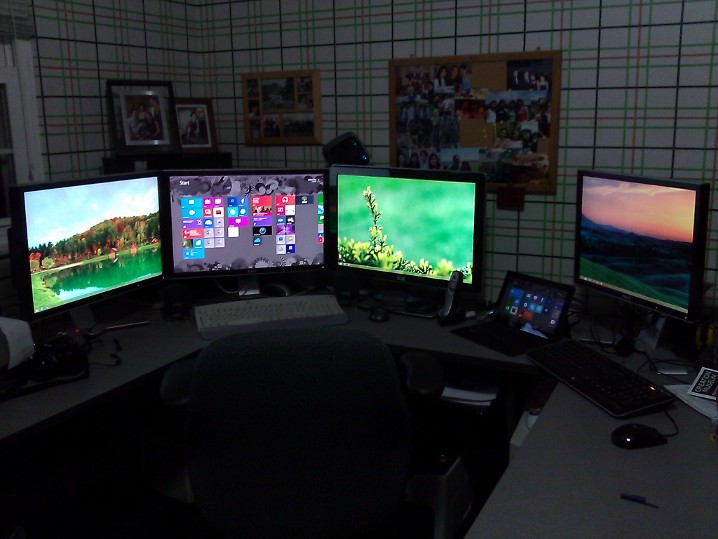
I am also more of a desktop guy. I prefer to have a beefy desktop to do most of my work. At home, I have desktop with quad core CPU, 8GB of RAM, 256GB SSD, plenty of data storage, decent video card to power my three monitors setup (all 24 inches, 1920x1200). You can see my home setup on the picture on the left - where I have my desktop powering the monitors on the left. The Surface was connected to the smaller monitor (21") on the left.

Trying to meet the need between the desktop and the smartphone, there are several ideas that come to mind: a huge smartphone (like Galaxy Note), a Chromebook, an ultra-book, or a tablet. But, none of them really fit with my needs or budget - until I heard about Microsoft Surface. I went to the closest store in Cleveland, OH to try and test the Microsoft Surface the day it came out on October 26th 2012. I liked it, bought it, and have been using it pretty much daily ever since.

So why Surface? Why not those other options? Macbook Air? Chromebook? iPad? Galaxy Tab? Nexus 7?

TL;DR

Microsoft Surface is fantastic. It fits my needs awesomely with the correct price point. It provides me the tools to be productive (like creating this lengthy blog post or creating a Power Point presentation) but yet still allows me to have the occasional  entertainment and media consumption such as games (WORDAMENT, Angry Birds), movies (XBOX Movies, Hulu), etc. It is not the be-all and end-all laptop or tablet - but it is certainly much more capable than iPad, Chromebook, or any Android tablets I have tried.

OFFICE SUITE

I owned a Galaxy Tab and used Nexus 7 quite extensively (before giving it to the office for Android development purpose).  While the Tab and the Nexus 7 are nice consumption devices - they are really lacking in productivity tools. Quick Office, Google Docs (and others) are quite nice in their own rights, but they are not Microsoft Office. My experience in using them left me longing for the Office experience.

The Surface comes with Office 2013 out of the box. It only has Word, Excel, Power Point, and OneNote. Now these applications are not striped down version of Word or Excel, etc - but they are the full version, just like the regular Office that I have on my desktop. Yes, it does not have Outlook or Access, but the essential four is enough for me. Just by that virtue alone - the Surface has become the best tablet for productivity.

My mobile device does not need to be beefy - but it has to be able to support Office - and Surface does that (and more). This is also one of the reason why Chromebook is not enough - it runs great for most of my need (email, browsing, searches, remote desktop, even Office Web App), but falls short for my power user need for Office.

TOUCH/TYPE COVER

The cover for Surface doubles as a keyboard as well - which is awesome.I have a cover for my Tab, which also functions as a stand. But then if I want to use a keyboard dock, I have to take the Tab out of the cover and dock it. Once done, I have to un-dock it and put it back into its cover. Plus, ever seen a Galaxy Tab keyboard/dock? It's ugly and thick.

The Touch Cover is thin (3mm), acts as a cover, water-repellant, can be folded back when used as a tablet (without removing it), strong magnetically attached, and looks awesome. It does take some getting used to during my first day or so using it - but then after a while, I can type probably 85%+ speed on it (assuming 100% is my full-keyboard speed).

The Type Cover is also thin, but thicker than the Touch Cover (6mm). It also can be folded back, magnetically attached, only comes in 1 color: black with gray back. With it I can probably type fairly close to full speed. Both covers are reversible and using very strong magnetic connection - so strong that I can hang my Surface upside down holding the cover without it falling off.

If you hate the small keyboard or the feeling of it - you can still plug in your existing (mechanical) keyboard via USB - and it will always work.

BATTERY LIFE

The battery life for the Surface is great - pretty similar to iPad, about 9 hours plus. So basically it can easily last the whole day. I brought mine to the office last week and used it pretty much from the morning (around 9am) until end of day (around 4:30pm) without connecting it to its charger and with probably 10% left at the end of the day. This was using the Surface connected to an external monitor, with a USB mouse, and used to connect to a VM via remote desktop all day. You can see the setup in the picture on the right.

This kind of battery life is pretty awesome because that means that I don't have to bring my charger every time. I can feel securely that it won't be running out of juice and it will last the whole day - and eventually connect it to the charger at night.

The charger itself is great and it charges very very quickly. I'd say within a couple of hours or so - from almost empty to fully charged. I was certainly benefited from this when I had to charge my Surface on a rush before a trip. I don't know how many times I wished my phone or Tab or laptop would charge faster during a layover or at a friend's house or on the go. 

EXTERNAL CONNECTIONS and KICKSTAND

The Surface also has a micro HDMI out port and a USB port. This means I can connect my monitor if needed (like when I am at the office), connect it to a projector for presentation, connect thousands of peripherals (such as my phone, mice, keyboard, printers, etc). The USB port is really awesome - I don't know how many times I wished there is a USB port for my Tab or Nexus 7 - so I can print or connect a keyboard or even a phone or camera to transfer files.

In my "docked" setup at home,  I am connecting both the USB and the micro HDMI. The USB connects to a USB hub which then connects my external keyboard, mouse, card-reader (built-in to the monitor), and printer (not seen, under the desk).

The Surface also has a micro-SD slot, so you can easily expand your space by just adding a micro-SD card - which is not an option for iPad or my Tab.

The kick-stand is absolutely-without-a-doubt-ultra-useful. In my Tab or my friends' iPad, there are no built-in stand. I thought the iPad cover that folds into a stand was brilliant, but the built-in kick-stand for the Surface is more awesome - especially when it is being used in the productive mode like a laptop.

MULTIPLE USER ACCOUNTS

Unlike a smartphone, where single account suffice, I need a mobile productivity tool that can be used with multiple user accounts. I want my emails to be separated from my wife's, my gamer score to be left alone by my son, and my setup not to be messed with. This feature allows me to customize my user experience according to me needs and my wife to her needs, and still allow a guest account for everybody else.

Android supports that with the new 4.2 JellyBean update - but that will never come to my Tab. For iPad - this feature is non-existent.

The fact that I am also a Windows user on my desktop, this also means that my setup roams (using Microsoft Account), my music selection & playlists roam, etc - which is nice indeed.

OTHERS and NEED IMPROVEMENT

There are other things that make the Surface nice, such as the XBOX integration with Smartglass, XBOX music, Netflix, Hulu+, etc. Those are nice - but I'd say that those things are bonuses and not the main reason that attracted me to the Surface.

The price point for the Surface is also right on. I think spending $1,000 for a Macbook Air (or more for Pro) for what I need is unnecessary and heedless spending. It is the same price point of an iPad/Galaxy Tab, but double the storage, and much much more productive-capable. 

There are several things that Microsoft can still improve. The first one is related to my experience with the Touch Cover - where the seam came lose near the connector within 2 days after purchase. MS Support took care of me (with the help of Mr. Sinofsky via Twitter), but it was still disappointing that a product needs to be replaced that soon.

The magnetic connection to the charger is also not that great. It works awesomely when connected properly, but it is a bit of a pain to get it connected and won't snap with assurance (unlike the Covers) without really paying attention. The indicator light helps, but I wish it would have been easier.  

The Windows Store needs more apps. It has most of the apps that I need, but I think the ecosystem will get better with more apps. More games, more productivity tools, more niche apps.

IS IT FOR YOU?

Well, isn't it the question? Depending on your needs and what you already invested, the answer can be "yes" or "no".

Let's do the "NO"s first:
  • If you already have a recent ultra-book (like Lenovo X1/X220/etc, ASUS Zenbook series, etc). I'd just upgrade your ultra-book to Windows 8 and be done with it. 
  • If you are looking to have one-powerful-machine-to-do-them-all. If this is your need (running Photoshop, doing software dev, running VMs, playing Starcraft 2, etc) then get a robust powerful laptop instead. The Surface will never be a full laptop replacement. Or wait for the Surface PRO.
  • If you are already heavily invested in Apple lines (Macbook, iPad, iPhone with all their accessories). Unless you really want to "switch".
"YES" is a good answer if:
  •  Your needs are similar to mine: no laptop and have other computer to run other things, need MS Office, casual gamer, with no or little investments in other tablets. I think you'll love the Surface like I do.
  • Want to update or replace your old netbook and your needs are quite basic, such as email and browsing, social (Facebook, Twitter), MS Office. There is no sense of wasting $1,400 for a Macbook Pro or $1,000 for a Macbook Air if that's all pretty much you need your computer to do.
"Maybe" is in order:
  • If you are a gamer and primarily looking for a casual gaming device. An iPad or Nintendo 3DS or PSP Vita is probably better for that - or even an Android tablet like the Nexus 7. This of course can change as the Windows Store are getting more and more apps/games.  
  • If you are a heavy XBOX 360 user. Smartglass is awesome and being able to watch a movie on your XBOX and then continue it on your Surface is cool. Or getting extra contents of the movie you are watching, the games you are playing, etc. But, Smartglass app for iOS, Android, and WindowsPhone should be able to do the same thing.
  • If you want to switch from Apple to Windows. 
  • The rest of all other reasons that you can think of. 

-- read more and comment ...

Tuesday, October 30, 2012

Nest Thermostat

I heard about the Nest thermostat since last year and followed its development online through their blog and tech news sites. At the time, my digital thermostat was running fine, but it is always a pain to set/adjust, change the schedule, and non-intuitive - so my wife and my friends would usually ask me to adjust the temperature setting (instead of doing it themselves). So since that point on I have been on the lookout for a "better" thermostat and preferably an "internet connected" one. When I heard about pre-ordering a Nest, I did it right away and bought it when it came out last year.

Nest was not cheap ($250), especially compared to the typical programmable thermostat you find at the hardware store (~$75). Most people will say that "it's just a thermostat - why get an expensive one?" - and they are right in a way that the benefit is not that apparent right away. But after using it about a week or so, I never looked back.

So what sold me in the first place? After a year or so using it, what are my thoughts about it? This blog post will answer both questions.

Top notch website 

Have you ever been to the Nest's website? I urge you to go there - http://www.nest.com. Not only it is very well designed and easy to navigate - but it also absolutely informative. After reading some articles and watching some videos (all which are well made), it really answers all my questions and more. The videos put me at ease about doing a self installation or whether Nest will work my current furnace/AC with their compatibility checker.

Nest's website also explain how will Nest help you save energy consumption. So instead of some nebulous magic, Nest spells it out in its blog and articles.

There is also this "Living with Nest" page that pretty much explains how Nest actually work with your living habit, from the first day, the first week, first month, and eventually where Nest will stay out of your way and learn to understands your habits and adjust to them.

Killer Nest Web App

Nest also has a web app. So once you connect your Nest to your WiFi, register it and create an account, you can actually manage your Nest from anywhere in the world with an internet connection. 

This is a killer feature. I can be at the office or my friend's place and lower down the temperature at my house or even turn it off. I can pre-heat my home on my way back from vacation or cool it down, etc.

The web app also allows you to manage your Nest settings such as Auto-Away & Away Temperatures, Schedule, Learning, Lock, etc. No more fiddling directly in the thermostat once you got Nest connected to the internet. Everything can be done via the web admin tool.

The Web App also shows you the energy usage for the last 10 days. If you are saving energy, Nest will give you a "leaf" - which is also showed in the energy usage screen (a bit of gamification for energy saving).  This energy calculation is also adjusting depending on the temperature in your area as well as any adjustments you make during that day. In the detail view, it shows the time of the day when the heating/AC unit is working and the sum of hours for the whole day. This is really awesome in helping me out in saving energy - thus saving money. This feature along has helped and motivated me and my family to adjust our habit to save energy.

If you have multiple Nests in your home (to manage different units for multiple rooms etc), the web app also will identify each Nest individually, so you can control each of them independently.

I have to say that their website and web-support is superb. Probably the best I have seen and experienced. Sometimes I could not help showing it of to my friends. You can read more about their Web App here. 

Mobile device support

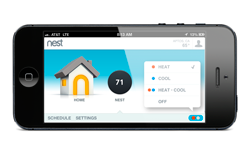
Nest also support mobile devices: iPhone, iPad, Android Phones and Tablets. Beyond the Web App, this is something that I probably use the most: adjusting temperature from my bed, or setting Away while on the road, or simply just checking the energy usage. The mobile app has most of the features that the web app has. Use the web app when sitting in front of the computer and use the mobile app when using the phone/tablet - awesome.

It took Nest a while to support Android tablet, but thankfully, the web app can be accessed quite easily using FireFox or Chrome using the desktop mode. Now, Nest released an update that works for my Galaxy Tab. Now - I am a Windows Phone use, so if you are reading this blog, Nest - can you make a Windows Phone app? You can read more about the mobile app for Nest here.

Nest Monthly Energy Report

This is an unexpected feature/support that surprises me - in a very very good way. I did not know this for in the beginning but was pleasantly surprised when I found out about it. Basically, Nest sends you an email every month summarizing your Nest usage report, compared to previous month, your "leaf" earning, etc - as well as links to new blog posts, tips, and other Nest benefits.

Unlike typical marketing emails or spams, this email from Nest is actually useful and beneficial to help you in using your Nest better and saving more energy.

Getting this email is like getting a pad in the back about your energy saving and also motivate you to maximize your Nest instead of just simply leaving it as a programmable thermostat. It gives you a picture of your energy usage pattern and helps you to make adjustments to be more efficient.

Software updates and support

I'd say that Nest has better software updates support and support in general than my Android devices. In 1 year, my Nest has had 2 software/firmware updates - both were feature packed updates (as well as fixes etc), huge improvements for the web app, and continuous updates for mobile device apps. All in all, excellent software and firmware support.

Secondly, their website is filled with articles, videos, and how-tos on about anything you can think of about Nest - from installation, troubleshooting, compatibility, and apps. This combined with responsive email & twitter support, and phone support - I certainly feel taken care of and satisfied. My hats off to them.

Oh yes, it comes with 2 years warranty too.
-- read more and comment ...

Tuesday, September 11, 2012

KOSS PortaPro Review

When my full-size headphone was snapped in half several years ago, I was scrambling to find a new one. I got a newer similar model from a local store for around $20 - but then after several months, its cable broke and became basically a mono headphone. A friend of mine then gave me a KOSS portaPro. The portaPro is an on-ear headphone, which I have never used before - since all of my headphones were always full-size ones. So understandably, I was very skeptical about it. But since my banged-up mono broken headphone was my only other option so I started using it. It has been about 3 years now since I started using the portaPro - and I am still using it as my trusty headphone.

Awesome sound!

I still distinctly remember when I used it for the first time to listen to music (prior to that I was using it for listening to podcast), I was really blown away. The sound quality coming out from this seemingly dinky headphone is amazing. Yes, my old full-size headphones were cheap (less than $40) and obviously not BOSE or Beats or any of those fancy ones. But seriously, this portaPro was awesome in terms of sound quality. Clear and powerful bass, superb mid-range, balanced treble. I would say that the sound quality of this portaPro probably competes with the mid-range ($75-$150) full-size headphones (with no noise-cancelling).

Cheap!

Since the portaPro was a gift, I did not know how much it cost - so I looked it up online on Amazon - and it was cheap (or at least A LOT cheaper than those fancy headphones). It is only about $45 (or less) - which is only 1/4 of the price of Beats ($199), 1/7 from Bose ($299), or 1/2 of any typical Sony headphones (~$100). Then you say it's because it's an on-ear, of course it's cheap. Yes, that might be true - but, I have tried other on-ear headphones (Logitech, Sony, Panasonic, Phillips) and none of them rival the sound quality of the portaPro. Truly, I think the combination of the sound quality and the economic price hits the sweet spot for me.

Small size

The advantage of having the portaPro vs a full-size headphone is the small size. It fits easily into my laptop bag, my travel bag, or even my wife's purse. This is something I could not do with my full-size headphone - which means if I decide to carry it, I practically have to have it hanging on my neck all the time if not using it. The portaPro also folds - makes it even smaller.

Last longer than my older headphones

This portaPro probably takes a lot more abuse than my older headphones, since I carry it in more places, shoved into my bags repeatedly, taken into trips, etc. But still looks great, functions normally, and really no complains from me. It looks flimsy, but it seems to last forever.

After 3 years, I had to replace the foaming pads that cover the drivers. The old foaming are torn. I bought the foaming on Amazon and they install easily - just remove the old foaming, put new ones one - took about 3 minutes and done. No glue, no stitching, no hassle.

Now it feels like it's a new headphone again.

So if you are in the market for a headphone, I suggest you check out KOSS portaPro. I totally love mine and I am guessing you will be pleasantly surprise by it.
-- read more and comment ...

Monday, August 20, 2012

Installing Jelly Bean ROM to Galaxy Tab 10.1

Samsung is taking its time in making ICS available for Galaxy Tab 10.1. Since JellyBean has come out since June 2012, it will probably taking another year to get a JellyBean update from Samsung. Looking in the internet, there are JB (JellyBean) custom ROMs available for the Tab. Since running Honeycomb is really aggravating, lagging, and quite a pain - I decided to take the plunge, root, and install custom ROM. Another option is to just get a Nexus 7 device - which will cost $200 more than installing custom ROM.

So in this post, I will describe the step by step process in installing JB ROM into my Tab (from stock Honeycomb). Please note that there are risks involved when one is doing this - that one may "brick" the device, or the installation may fail and require further troubleshooting etc. So do it on your own risk - no guarantees from me. My experience was that the installation was smooth and without any glitch whatsoever. Please do not skip any steps - also make sure your battery is full or almost full. Part of the steps is wiping the data. So if you do not want to lose any data, make sure you back it up first. 


1. ROOT (if yours is already rooted, you can skip this step)
Follow the steps from xda-developers here for rooting your device. The link above even has a video step-by-step guide.

2. OPTIONAL
At this point, I purchased ROM Manager App from the Google Play and update Clockwork Recovery to the latest version. 

3. INSTALL JB
  1. Download 2 sets of files from xda-developers, look for the section like the image on the right:
    1. The custom ROM (select the one that applies to you)
    2. Google Apps
  2. Copy the JB package (both the ROM and the Google Apps zip files) to your tablet’s internal Tab memory
  3. Turn off Tab.
  4. Go to ClockworkMod Recovery by turn on the Tab while holding the Volume Up button. 
  5. When the screen turns on, release the Power button but hold the Volume Up button until a menu shows up on the screen. 
  6. Press Volume Down to select the recovery mode icon and then, press the Volume Up button to enter recovery.
  7. Create a backup of your current ROM. Select "backup and restore". Select "backup" again. This will initiate the backup process. Once it's done, select "go back" to go back to main menu.
  8. Select "wipe data/factory reset" (and confirm)
  9. Select "wipe cache partition" (and confirm)
  10. Select "advanced" -- "wipe dalvik cache" (and confirm)
  11. Select "mounts and storage" -- "format / system" (and confirm). Once done, go back to main menu
  12. Select "install zip from sd card" -- "choose zip from sd card" and select the JB zip file and then confirm selection. The ROM installation will start. 
  13. Select "install zip from sd card" -- "choose zip from sd card" and select the Google Apps zip file and then confirm selection. The Apps installation will start
  14. Once done, select "go back" to the main menu and then select "reboot system now". DONE!
-- read more and comment ...

Monday, February 13, 2012

Metro Themed Power Point

A couple of weeks ago, I had to do a presentation in my church highlighting a leadership transition that is happening. Since this presentation is more like an "announcement" instead of a "teaching" or "lecture", I thought I would try to craft a Power Point slides that resemble a Windows Phone's Metro UI.

I did some research about Metro design guidelines and found this MSDN article, this pdf, and a bunch more. MS Office 2007 or newer also already has "Metro" color scheme. Here are some highlights of the basic stuffs:

  • Font: Segue UI, Segue UI light, Segue WP
  • Use boxes for points (instead of bullet points)
  • Intentionally cut title/header text to provide the illusion of panorama display
  • Try to use slide transition that simulate "swipe"
  • Need to use custom animation to simulate "scroll"
Here is what I came out with as a starting point. Begining with an empty slide with black background, I created boxes using various colors and use them to hold my "welcome to meeting" verbiage. I also placed them offset to the left a little bit and give space for the arrow & circle. I also made sure the font size for the big text are consistent. I tried to not use the same color for each box to make it more colorful.

For the next slide, I tried to simulate a "Hub". Create an oversize hub-title, with some part of the text bleeds out to the right of the screen, giving the hint of more content to the right. This is basically a "list" view, the list title with all lower case and the list items with some small blurb for each one. The second list title is also position to the right to simulate the next list. 


The last slide is basically a copy of the first slide, but with some added effects for "scroll up". So in the design view, the boxes go all the way down beyond the bottom edge of the slide. With custom animation, I simulate a "scroll up".


You can download the power point file here. 
-- read more and comment ...

Sunday, July 10, 2011

Samsung Galaxy Tab (10.1 Honeycomb) Experience

I got my Galaxy Tab as a gift from attending Google I/O conference back in May 2011. I have been using it pretty much daily, brought it along on a family vacation with my family for a week - and my wife and son also have been using it to check emails, play games, browse around, etc.

When the Tab was given to us by Google, it had Honeycomb 3.0 on it - since then it has been upgraded to Honeycomb 3.1. I won't bother you with detailed specs - you can see it here, but I will write about my personal experience with it from the last 2 months.

-- read more and comment ...

Wednesday, May 18, 2011

Asking For Assistance While Minimizing Interruptions - How To Do It Well

It is always somewhat a dilemma when you have to interrupt somebody to ask him/her to help you. There is always a tension between the pressure or desire to solve your problems/issues/bugs and complete your task AND the realization that everybody has their own set of tasks to complete and you are just about to interrupt & tell them to drop what they are doing and focus their attention to help you.

Each person will have their own tendencies:

  • Some will just be too shy or reluctant to seek help and just keep banging their heads and hope miraculously or by luck that they will be able to resolve it. Therefore some issues can just linger in the bug list unresolved or taking longer than necessary to be closed.
  • Yet a different group of people will ask, discuss, and talk about their emerging problems/issues/bugs all the time with their colleague - and creating noise, constant interruptions, and annoying. 
We all know that the balance lies somewhere in between. We want to respect out friends/co-workers/colleague privacy, time, and work - while at the same time trying to find possible reasonable solutions or pointers in solving our issues.

This blog post is not about how long should you wait before asking question to others, but is about when you actually decided to ask somebody about your problem - and how to do it well.

One of the rule of thumb that I have heard and embrace is the 15 minutes rule - that if you encounter a problem and cannot solve it immediately, try to find some answers/pointers/hints on how to resolve it with all your might in approximately 15 minutes, and if you are still stuck, then get help from others. This works in theory but often what somebody does in that 15 minutes or so is just weird or not helpful at all. I have seen somebody basically just stare at their code up and down the screen and then declare a surrender. Or, hitting the same scenarios again and again, recompile, test with the same code again - which predictably yield the same errors/wrong results/problem as before. Some will Google their issue and read the search result and do nothing about what they read or just skim through the results.

To be able to ask for help well, I recommend doing the following:
  1. It is important to know and understand the error message you are getting - if any. You should not go to somebody equipped with "it does not work". It is really bad when somebody comes to you and just say "it's broken" and when you ask "What's the error?" that person replies "don't know".
  2. Do your own homework and reasonable research first. The 15 minutes above should be counted toward this. Trying possible scenarios and fixes, what works, what does not, noting them down, etc. Then communicate this to the person that you are seeking help from - so they don't have to waste their time in trying what you ave tried again. Bring screen shots, print out, examples, etc.
  3. When you are about to interrupt people, I recommend asking whether the person has some time to spare or whether they are free at the moment. I know some of my friends to away from their desks during lunches precisely because of this reason - so they are not interrupted during lunch. It's a good practice to respect people's time and space - and asking beforehand whether they can be interrupted or not goes a long way.
  4. If the problem is not that urgent, try email. Of course describing your problem in an email may take more time (screen shots, etc etc) and some times it is just not possible. But this also an alternative to get help from others without pressuring them to drop everything on their plate and solve yours.
  5. When people allow you to interrupt them, then describe your context, settings, cases, and ask your question decisively and quickly. It's confusing when someone just storm to your cubicle and say "It's broken, does not work at all!". OK - so what do you want me to do?? Here is an example: "Bob, I have been getting some errors in ELMAH about 'null reference error'. From the trace, it seems to be coming from ProfileEdit.ascx - which uses a custom editor template for a textbox for a string value. If I use a regular textbox, it works fine, only when using the custom template then the error shows up. The custom template uses same validation rules - which I am not familiar with - and the calculated null values come from that line. Do you have any ideas or hints that will help me?"
  6. At this point, we have to give them the freedom whether they want to respond now or later. Your colleague may say "Hm, let me look into it, I will let you know" - then we ought to thank him/her and leave, go back to our desk and do something else or do some more research. 
  7. Also try to ask for help during non-peak time. I like to ask help early in the day or right after lunch, before my co-worker get into their working zone mode. Since he/she is not in their zone yet, then it becomes less of an interruption for my co-worker(s).  
  8. If you have additional suggestions/recommendations, please post them in the comments!
I am not saying that I have been perfect in doing all these - far from it. So here are some of the mistakes or common error that I have done, or I have witnessed people did (if some of these describe you then You're Doing It Wrong!):
  • Send an email to co-worker about a partially described problem, then coming to that co-worker's cubicle/office and asking "Have you read my email? What do you think?". Why is this annoying? Because it's redundant and also pressuring the co-worker to immediately see/solve your problem. If you are going to send an email, send a intelligent and good description of the problem and your question. A good analogy is like creating a question/post on a forum (or StackOverflow) and then wait! If it's urgent (which is usually not), then why send an email?
  • Coming into co-worker's office/cubicle and saying "Can you come here real quick and check what I am doing wrong?" Why is this wrong in so many different levels? Because it shows an almost complete disrespect for the co-worker's attention/time/load - and expecting him/her to just drop whatever he/she is doing and solve my problem or help me. Plus, I am usually to lazy to do some research and try to articulate my problem to my co-worker - so bringing him/her to my workstation is just so much easier. 
  • Coming into co-worker's office/cubicle, describing the problem and just stand there, fully expecting the other guy to help RIGHT NOW - even some times when he already said that "give me a minute".
  • If you have additional scenarios, please post them in the comments!
Now, even if you follow all these recommendations - that does not mean your co-workers won't be mad at you and always help you with super-eagerness and save your life - I know I don't some times. But, the bottom line is that when you respect your co-workers' time, space, and attention (by minimizing interruptions), most of them will be more likely to return the favor and more willing to help you.

One exception to all of the above: if the issue at hand is URGENT (i.e. we pushing for production, crunch time, "server is down!", etc) - then all goes out the window and try to do whatever it takes to get the job done. But again, this is usually only occupies a small percentage of our work time and mostly preventable. 

Now, stop interrupting me!

-- read more and comment ...

Wednesday, April 13, 2011

Munchkin Strategy: Orc

An Orc card says this:

An orc who is hit with a curse can always choose to ignore the curse and lose a level instead - unless he's already at level 1.

When an orc fighting alone defeats a monster by more than 10, he goes up an extra level.
On the surface, these abilities seem to be superficial and not that powerful. Lose a level? What idiot prefers to do that instead of absorbing a curse? Extra level if defeating more than 10? Sounds either useless or extremely hard!

But, to a skilled Munchkin player, becoming an orc can be a powerful strategy in both early and late game.

-- read more and comment ...

Monday, March 7, 2011

Munchkin Strategy: Wizard

Munchkin is a card game, where you play a character in battling monsters in order to get to the winning level (level 10 for regular or 20 for EPIC). The game involves some luck (drawing cards), strategies, a good amount of persuasion, trash-talking, and bantering back-and-forth with other players. That combination makes the game a lot of fun, interactive, and can be played again and again without getting boring.

For more information about Munchkin, you can read their website: http://www.worldofmunchkin.com/

If you are familiar with Dungeons & Dragons, then Munchkin should be somewhat familiar to you - a funny version of D&D. It has races & classes, curses, combat strength, charms, potions, etc.

The rest of this post assumes that you are somewhat familiar with the game, basic rules, and its vocabularies - outlining a basic strategy to use if you are playing as a Wizard class.

-- read more and comment ...

Tuesday, December 28, 2010

T-Mobile Customer Experience

One of my personal conviction is generosity. So that conviction, combined with good service (especially paid ones) usually produce a desire to reward the service giver beyond the typical means. I personally don't think this is unique to me - for example in tipping your servers in a restaurant, when you are getting excellent service, some people will give more tip, etc.

In this particular experience, I was getting superb service from T-Mobile and this blog post is a way of rewarding them of their excellent efforts to me as a customer.

-- read more and comment ...

Tuesday, November 23, 2010

Windows Phone 7 Experience

About 2 weeks ago, I bought a new cell phone. I am a T-Mobile customer (T-Mo FTW!) so I renewed my contract and got the phone at a discounted price. My previous phone was a T-Mobile G1 (the 1st Google/Android phone) and I bought it used from a friend of mine. That device served me extremely well and it is still running well and my wife is using it.

So for my new phone, I bought an HTC HD7, running the new Windows Phone 7. This blog post is about my experience with it so far - what I like about it, dislike, a little bit comparison to Android, etc. Nothing really scientific, but just sharing my experience, including an app development experience (since I am a software engineer). Obviously, my experience is a combined experience between the hardware (HTC HD7), the OS (WP7) - but when necessary I will mention the specifics.

What I REALLY Like
  • This is something that is hard to describe, but there is such a pleasant feeling in using the device with the WP7. Every scroll is buttery smooth, no lag, no stutter, snappy, and my user-experience for the 80% of my usage of the phone is superb (this includes making phone calls, receiving calls, speaker phone, contacts, searches, calendar, email syncs, twitter, browsing). 
  • Panoramic view is totally awesome. It helps to go through things quickly, less click/swipe/back, etc. The panoramic background in some hubs are also contributing to increase the niceness and pleasant of using the device. All this being carried in a 4.3" screen - superb. iPhone 4 screen is better with the Retine Display, but HTC HD7's is bigger.
  • The lock screen is also surprisingly well designed. I did not think about this before - but then I realized that showing all my notifications & next event on the lock screen is awesome! One of my cell-phone related habit is to look at my phone to see the time AND to see what is the next item in my calendar - which totally fits into the WP7 paradigm (and I have a feeling that I am not the only one with that habit).
  • The email interface is awesome, every email is delineated well, clear text, eye-pleasing font, easy to use (virtual) keyboard, the sync is also fast, and does not lock the screen, excellent progress bar with the dots, etc. As far as email related experience, this is probably the best I have seen (compared to iPhone/iPod Touch, WinMo, BB, Android).
  • The Calendar interface is also very robust and well done. It syncs seamless with my Exchange calendar, displays the next "event" on "Home" and "lock" screens, and for the extra kick, the calendar date "flips" when you scroll the events in the event list. Haha - I thought that was small but slick nonetheless. 
  • The "Tile" or the "Metro" design. I though it is awesomely done and intuitive. I am a bit biased to big icons - so the tile suits me well. Some also animate (changes in photos, people, news images, etc) - which added some "wow" factor to it. Some provide crucial information: the weather app gives the current weather summary, Outlook shows number of new messages, etc. There is no extra "widget" or differentiation between "widget" and "app shortcut" (like in Android) - which makes things simpler.
  • The Media hub is really nice, it combines radio (like iHeartRadio), YouTube streams, your videos, music, podcasts, etc, and organized well via panoramic views. They just works seamlessly. No need to open YouTube app separately or media player app or radio app separately. One hub and everything works.
  • Zune software. I HATE itunes - and Zune is awesome. Much better design, fast, unobtrusive updates, AND YOU CAN SYNC WITH MULTIPLE COMPUTERS! Yeay! Also, sync media over the air!
  • Developing an app for WP7 is very very easy. Well I am a bit biased since I use Microsoft tools for my work. But here is the thing - I experienced quite some pain to get Android/iPhone dev environment to be up and running and I did created a some kind of "hello world" app, but nothing beyond that. With WP7, in 2+ hours I cranked out a panoramic RSS reader with style and all. Certainly (subjectively) a huge added value for me.
What I Like But Consider Not As Important
  • XBOX Live is really cool. You can create/modify your Avatar from the phone, play some games, sync accomplishments, etc. But, since I am not a big XBOX Live player, I don't use this feature as much. 
  • Instead of paying per music/album, Zune allows you to pay subscription based: A $14.99 / mo gives you unlimited access to millions of songs you can stream on your PC, Xbox 360, Windows Phone 7, or Zune HD - AND you get to keep 10 per month FOR FREE FOREVER!
  • The WP7 OS is always stock and all the bloatware from carriers can always be uninstalled just like any other app without rooting or hack. This was not my experience with Android or WinMo.  
  • WP7 Bing's voice search/command seems to be able to pick up my voice better compared to my old Android. I don't think this is a big deal - could be just because my G1 can't go beyond Android 1.6. I think Froyo most likely has better support for this.
  • The robust kick-stand in HTC HD7. It's awesome when watching videos or reading on a table.
  • The camera is nice. Being able to take 720p video and take a 5mpix photos are good features to have. Plus, the camera software is really fast - you can go from "lock" to "save picture" in about 5 seconds or less. Although I consider this as "not as important" for now, but I do see that I take pictures more because of the quickness or the camera & its ease of use. 
What I Don't Like & Needs Improvement
  • Marketplace. It needs to differentiate the search between music, apps, games, etc. Right now, when I am searching for "News", it gives me ALL related with "news" instead of contextual search result. I am fine with the "all" search and there are times when it is useful, but there needs to be specific search filter too.
  • Map & navigation. Bing maps in WP7 is awesome and slick, but Android's turn by turn saved my ass multiple times. I heard some rumors that this is coming out in SP1 in Q1 2011 - at least I hope so.
  • Need more apps, FREE apps. I want my free "Alchemy" or "Angry Bird" like in Android ... Or QR code reader, Google Sky Map. More apps ... WP7 apps availability is nothing compared to iPhone or Android.
  • Twitter integration to People, like Facebook or MySpace or LinkedIn
  • Phone wide search. Search people, docs, emails, etc from a single place.
So there you have it - my conclusion? I like it - a lot. Probably the best device I have used to date. If I have to rate my OS of choice it would be like this:
  1. Windows Phone 7 - for those of you who are skeptical, I suggest you to try it. I was too a skeptics, but I am sold out now. Yes, it is not perfect, has room for improvement, but it is my device of choice for now.
  2. Android, probably the G2 - fast with HSPA+, excellent keyboard, stock Froyo, loaded with free apps, nice slick phone. (Or if you are on Verizon, go with Droid X)
  3. iPhone - only if iPhone is available outside AT&T.
I have to say, in all this experience, T-Mobile has been awesome. I have been their customer for almost 8 years and there are reasons for that. Their phone customer service is impeccable, their store people are great, their rate are the most economical of all, ultra-fast network, and great selection of phones, PLUS they are the first in many things (1st Android device, 1st Google provider, 1st big-screen-phone in HTC HD2, 1st in getting WP7 in US) - and they always use hot women in their ads. What more can you ask for?

-- read more and comment ...

Monday, May 10, 2010

Need wallpapers?

Want some themes or wallpapers for your multi-monitors running Windows 7? Here are some sites that I think have some cool wallpapers:


Do you have any particular sites that I can add into this list? Let me know in the comments. And here is the rest of it. -- read more and comment ...

Wednesday, January 20, 2010

My Blog Shows Up in Google But Not in Bing - Why?

When I started blogging, all my traffic pretty much were from direct, meaning someone knows the URL to my blog and type it in the location bar. Most likely those people are myself. As time goes by, I added more content, post links in twitter, stackoverflow.com, facebook, etc, my blog starts to pick up some traffic, both from referral (someone clicks a link to get to my blog) or from search engine (mostly Google). Now, my site traffic source is about 80% from search engine results. I use Google Analytics to track my traffic.

So, when Microsoft released Bing, I tried it and I like it. I was considering switching totally to Bing as my main search engine, but one thing that saddened me was that Bing did not produce results for my blog, even when I entered partial URL of my blog address, or the title of my blog, or any keywords in it. Basically I came to the conclusion that since Blogger or Blogspot is owned by Google, they must be crawling it automatically, maybe somewhat prioritize it in their ranking. But, Bing does not crawl Blogspot - which includes my blog.

So how can we fix this?


Turns out, there is a "Bing Webmaster Center" page (here), where you can submit your site to be crawl by Bing (assuming it has not been crawled). Voila! So I went in there, click "Sign in to use the tools" button in the middle of the page. Then it asked me to sign in with my Windows Live ID (this can be your hotmail account, LIVE account, MSN account). Once logged in, I clicked on the "Add a site" button, enter my blog address in the "Web address:" textbox and click "Submit".

Then the webmaster tool will present an option to authenticate your site. You can either place an XML file in your site or add a meta tag in the homepage of your site. I selected to use the second option (add metatag) since my blog is hosted in Blogger/Blogspot and I cannot add a file - but adding a metatag just means I have to modify the template of my blog. So I went to my blog layout administration screen, copied and pasted the metatag from Bing Webmaster page and saved the template.

Now back in the Bing Webmaster page, I clicked "Return to site list". In there I can see all the sites that I have registered with Bing to be crawled and I can check the status as well by clicking on the link for each site. Wait for several days for crawling and everything is all set! Pretty easy!

Bing
Bing Webmaster Center
Google Analytics
-- read more and comment ...

Monday, January 4, 2010

Some funny stuff on the web ...

There are some things on the web that you just have to bookmark ... and share. Here are some that I found in 2009 that I think are funny (or outrageous) enough to bookmark and share:

http://thereifixedit.com
How to fix the problem in our lives with extra-ordinary creativity, extremely cheap, works, and at the end of the day you can say "There! I fixed it!"

http://www.notalwaysright.com
For the record: Customer is NOT Always Right!

http://www.dontevenreply.com
Have you ever posted something in Craigslist? .... And got replies from hell? Apparently a lot of people have.

http://www.peopleofwalmart.com
Walmart is really my favorite place ... this site is a testimony of it.

http://thedailywtf.com/
Yes, they update it daily, because WTF moments happen daily!

http://xkcd.com/
The MODERN Far Side!

http://awkwardfamilyphotos.com/
The URL says it all ... awkward indeed!

I will add some more as I remember them ... so far, that's all.

-- read more and comment ...

Monday, December 14, 2009

Poop Ethiquete at Work

This post is NOT originally mine - I got it from the internet like here and here.

We've all been there but don't like to admit it. We've all kicked back in our cubicles and suddenly felt something brewing down below. As much as we try to convince ourselves otherwise, the WORK POOP is inevitable.

For those who hate pooping at work, following is the Survival Guide for taking a dump at work.

CROP DUSTING
When farting, you walk briskly around the office so the smell is not in your area and everyone else gets a whiff but does not know where it came from. Be careful when you do this. Do not stop until the full fart has been expelled. Walk an extra 30 feet to make sure the smell has left your pants.

FLY BY
The act of scouting out a bathroom before pooping. Walk in and check for other poopers. If there are others in the bathroom, leave and come back again. Be careful not to become a FREQUENT FLYER. People may become suspicious if they catch you constantly going into the bathroom.

ESCAPEE
A fart that slips out while taking a leak at the urinal or forcing a poop in a stall. This is usually accompanied by a sudden wave of embarrassment. If you release an escapee, do not acknowledge it. Pretend it did not happen. If you are standing next to the farter in the urinal, pretend you did not hear it. No one likes an escapee. It is uncomfortable for all involved. Making a joke or laughing makes both parties feel uneasy.

JAILBREAK
When forcing a poop, several farts slip out at a machine gun pace. This is usually a side effect of diarrhea or a hangover. If this should happen, do not panic. Remain in the stall until everyone has left the bathroom to spare everyone the awkwardness of what just occurred.

COURTESY FLUSH
The act of flushing the toilet the instant the poop hits the water. This reduces the amount of air time the poop has to stink up the bathroom. This can help you avoid being caught doing the WALK OF SHAME.

WALK OF SHAME
Walking from the stall, to the sink, to the door after you have just stunk up the bathroom. This can be a very uncomfortable moment if someone walks in and busts you. As with farts, it is best to pretend that the smell does not exist. Can be avoided with the use of the COURTESY FLUSH.

OUT OF THE CLOSET POOPER
A colleague who poops at work and is damn proud of it. You will often see an Out Of The Closet Pooper enter the bathroom with a newspaper or magazine under their arm. Always look around the office for the Out Of The Closet Pooper before entering the bathroom.

THE POOPING FRIENDS NETWORK (P.F.N)
A group of co-workers who band together to ensure emergency pooping goes off without incident. This group can help you to monitor the where about of Out Of The Closet Poopers, and identify SAFE HAVENS.

SAFE HAVENS
A seldom used bathroom somewhere in the building where you can least expect visitors. Try floors that are predominantly of the opposite sex. This will reduce the odds of a pooper of your sex entering the bathroom.

TURD BURGLAR
Someone who does not realize that you are in the stall and tries to force the door open. This is one of the most shocking and vulnerable moments that can occur when taking a poop at work. If this occurs, remain in the stall until the Turd Burglar leaves. This way you will avoid all uncomfortable eye contact.

CAMO-COUGH
A phony cough that alerts all new entrants into the bathroom that you are in a stall. This can be used to cover-up a WATERMELON, or to alert potential Turd Burglars. Very effective when used in conjunction with an ASTAIRE.

ASTAIRE
A subtle toe-tap that is used to alert potential Turd Burglars that you are occupying a stall. This will remove all doubt that the stall is occupied. If you hear an Astaire, leave the bathroom immediately so the pooper can poop in peace.

WATERMELON
A poop that creates a loud splash when hitting the toilet water. This is also an embarrassing incident. If you feel a Watermelon coming on, create a diversion. See CAMO-COUGH.

HAVANA OMELET
A case of diarrhea that creates a series of loud splashes in the toilet water. Often accompanied by an Escapee. Try using a Camo-Cough with an ASTAIRE.

UNCLE TED
A bathroom user who seems to linger around forever. Could spend extended lengths of time in front of the mirror or sitting on the pot. An Uncle Ted makes it difficult to relax while on the crapper, as you should always wait to poop when the bathroom is empty. This benefits you as well as the other bathroom attendees.

-- read more and comment ...

Saturday, May 2, 2009

Investing on Cameras or Lenses?

Every year, there are several DSLRs coming out with new features and functionality that are eclipsing the past years DSLRs. If your have a DSLR and it was from several years ago, you may feel that it is quite obsolete compared to the new ones coming out this year. They are cheaper too!

To illustrate the point, let's say you have a entry level DSLR from Nikon, the Nikon D40 - which is release on December 2006. So a two and a half year old camera. It has big bright 2.5 inches screen, small, 3 focus points, 2 frames per seconds, built in flash, info view, scene modes, etc - for $549. It was the best selling DSLR at some point, the biggest bang for the buck.

So what would you do? Get a new DSLR every year (or every other year)? Or maybe lenses?

I recommend getting several flashes and some light stand and learn how to light via Strobist! Financially, it saves you LOTS of money (spend hundreds instead of thousands of dollars) AND exponentially improve your photographic skill - even with your current camera and lenses!

Now why is that? Or how does it work? Strobist provides tons of "how-to" etc (take lighting 101) and lighting resources (where to buy, reviews, etc). Secondly, most people usually want to get newer lenses because they need "faster" lenses. Faster lens means larger opening to capture more light. The standard kit lens is usually a "slow" lens, where it does not have the ability to capture light as fast as the faster lens. So, lighting/flashes compensate that by adding more light! So if you learn how to light - it will make your equipment to be more useful and all the more, you can do a LOT of things that really not possible without flashes.

Consider also this cost analysis:
Getting a new fast lens probably cost you $1,500. Getting an SB-800 and 2 more SB-600 (so 3 flashes total) will cost you $~700. Throw in a pair or light stand, 2 umbrellas, some gels - ~$200 - brings up the total to $900 - that using Nikon brand, and some nicer brands of stands and umbrellas, etc. So, learn how to light: WORTH IT!!

Now, if the choice is between camera and lenses, then I recommend in investing on lenses instead of camera. Several reasons:

  • All technique aside, it is the lens that contributes more into the sharpness of your picture
  • Beautiful bokeh (rendering of out of focus area) is caused by lens characteristics, not camera
  • Lens holds its value really well, unlike camera
  • Lens controls the aperture - which allow you to produce DoF, bokeh, and shutter speed - and of course the camera control the lens
  • Less need for upgrade for lenses
  • Studying the correct usage of lenses and its characteristics can improve your photographic skills better than camera
So got an older camera and itching for an upgrade? I say hold it. Check out your lens arsenal, and improve them first. In most cases for amateur or serious amateur, what your camera can do is more than enough for our needs. So as long as your camera is compatible with the lenses, stick with it and get a NICE lens instead. Does this mean you should throw away your kit lens? Nah, not really. You can keep it around for most occasions - parties, trips, vacations, etc - where you just want to enjoy the moment instead of being hassled by taking photos and their settings.

So, what do you currently have in your lens line up? I wrote a blog post about this in the past.

I am still using my Nikon D80 and a Nikon film camera - and I am not anticipating for a camera upgrade anytime soon. They are both still do their jobs very very well. But since then, I have upgraded my lens line up to be as such:
  • AF-S 17-35 f/2.8
  • AF-S 24-70 f/2.8
  • AF-S 70-200 f/2.8
BUT, again - my best investment so far are:
  • 2 Bogen Light Stands
  • 2 SB 600s
  • 1 SB 800
  • 1 SB 80DX
  • 2 White Umbrellas
  • 1 Silver Umbrella
  • 1 Multicolor reflector
  • 1 Set of gels
With some of those lighting gear, I made this picture in this post.
-- read more and comment ...

Tuesday, February 17, 2009

Saving Money on Electricity & Gas Bills

A friend of mine just told me about his gas bill for last month - a whooping $600+. Good thing that he lives in the house with 6 other housemates and the house is also an older house - so there are probably some leaks here and there which creating more work for the heater, hence more expensive payment.

Another fellow also is paying about $150+ per month for his electric bill per month.

I used to never really consider them as a big deal until I moved into a house, got married, and had a son. My expenses are piling up and I need to tighten my budgeting and do some cost cutting. One of the first area that I was able to successfully reduce is in the area of utility bills.

My gas bill used to be about $300 during the winter months and about $70 per month for the rest of the year. Last year, I reduce my gas bill from averaging $300 per month between December to March to about $150 per month (so about 1/2 of it used to be).

So how did I do it? Here are several tips that I found to be pretty useful...

Gas
I live in a 4 bedroom house, but we in most nights we only use 2 of the bedrooms: for my wife and I, and another room for my son. We use another room as my office and the last one as a guess bedroom. So keep in mind that the suggestions below may or may not apply to you in all situations - I am just providing tips that so far have been working pretty well for me and my family.

1. Get a programmable thermostat
This may cost you between $30 to $200, depending on how fancy you want to get with your thermostat. At least get a programmable one for both heat and cold air - and can be programmed based on daily basis. Some only has weekday or weekend setting. Depending on your need, get whatever suited for you. Mine is programmable by day and it is only $40 (one of the best investment in home improvement I have made).

2. I programmed it to turn down the temperature during the day on several days of the week where nobody is at home. Do not turn your heater off, but just lower the temperature. I lower mine to 10-15 degrees cooler than the regular temperature. So when I am at home, the thermostat usually shows 72 F and ~60 F when nobody is at home. You can program it so that it goes back up to the regular comfortable temperature 30 minutes before you are back home so you will come home to a warm house instead to a cold one. Obviously you cannot consider all possibilities, but try to get the "typical" schedule - and then program them it - you can override them as necessary.

3. If you are going away for a longer period of time (like on a vacation), lower your house temperature to the upper 40s F (but do not turn off your heater) and set it to come back up when you are about to come back.

4. If your household is like mine, where we typically are only using 2 rooms at night (or less), you may want to consider buying an oil portable heater. So at night, schedule your main house thermostat to lower the temperature to the 60s F and turn on your oil heater in your bedroom(s). That way, you are only heating the necessary rooms (typically your bedrooms) and not wasting energy on other unused rooms. I usually turn down the house temperature at 9:30pm and turn on the oil heater in my bedroom around the same time. Since the heat dissipates gradually in the main house so I won't notice much difference when I am walking into my bedroom (typically around 10:30pm) where the temperature is already picked up my the oil heater. My oil heater has a timer so it shut itself down around 7am, while my main house thermostat increase the temperature of the house around the same time (up to 72 F).

5. Reduce leaks. Make sure your doors, windows, etc are not leaking. You can buy weather strips at the hardware store to stop the leaks from doors and windows.

6. Install a ceiling fan. Heat goes up and ceiling fan helps to circulate the hot air from your heater better. You do not need to do this on every room of your house, but it will be very helpful to have it in your most used rooms in the house. Secondly, during the non-winter times, it can also give you some extra breeze.

There are other things you that requires much more money, such as replacing your windows with double layer windows, installing screen doors, fixing wall insulation, etc. I am going to get into those things in this post. Another thing you can do is put on an extra layer of clothing and lower the temperature. One of my friend set his daily temperature at 68 F during the winter months - and always wear a sweater or extra layer of clothing at home. Works great for him!

Electric
The principle is no different than "gas" - less usage means less payment.

1. Change filament based bulb with CFL bulbs. They cost more to buy, but they are worthy investments in the long run. Especially if you live in a house, where there are tons of bulbs. CFL bulbs usually cost you $2 per bulb but they also last longer than filament bulbs. In most cases, your average house filament bulb is a 60W bulb. Using CFL, you can get the same brightness with just 15W - that is 75% energy saving per bulb.

2. There are some light fixtures or lights that cannot use CFL bulbs. Light fixtures with dimmers cannot use CFL bulbs. Also, some of my lights are using fluorescent lights. In those areas, I would try to find the lower energy bulbs/lights (substitute 40W fluorescent with 34W, etc). Read more about CFL bulb here.

3. Always turn-off when unused. You can get a smart switch that automatically turn off the light when the room is unused for a period of time. OR ... you can just create a good habit of turning off the light when you are not using the room. In my house a good example of this is the kitchen, where there are 4 strips or 40W fluorescent light on the ceiling - totally to a 160W energy used when it is on. You can reduce the energy usage to 0 if you turn it off. Of course this also applies to other appliances and electronics, such as TVs, computers (or you can set it to hibernate automatically), DVD players, etc.

-- read more and comment ...