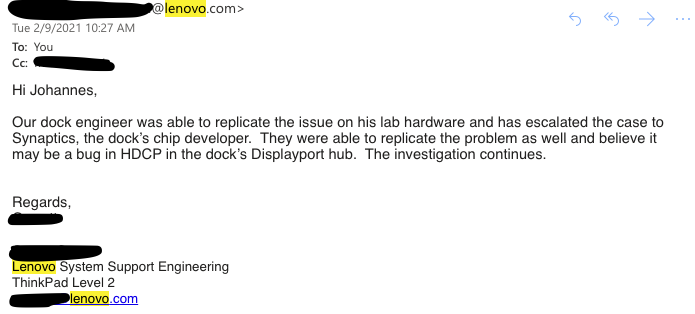
Around fall 2020, my old desktop PC was on its last leg (it was running Intel Core Quad 9300 - so it was super old). I decided to get a reasonable powerful laptop with a dock that can drive two 2K (2560x1440) and one 1920x1200 monitors. So I purchased a X1 Carbon Extreme Gen 2 (running i7-9750H, 32 GB RAM) and Thinkpad Thunderbolt 3 Workstation Dock Gen 2 (40AN) - and I also purchased the Premier Support. But soon, it was apparent to me something was wrong. Lenovo and their team has been very professional in responding to the issue. Every call I made to the Premier Support team or email exchanges have been helful and courteous. They deserve a lot of credit in investigating the issue and trying to find a good resolution with me. In short, to the user (me), the external monitors will blink (goes blank and comes back within a second or less) and some times will go blank for a period of time (ranging from two seconds to several minutes, or in some minor instances actually never come back). After about 8 weeks, Lenovo admitted that there is a bug in their dock - or to be precise in the chip (from Synaptics) they are using in the dock. The bug is related to HDCP - which is digital copy protection to prevent copying of digital audio and video content (i.e. during streaming). Since this chip is being used in all their TB3 docks (and Lenovo said also being used in other brands like DELL and HP docks) and it cannot be fixed via firmware update, so Lenovo said they do not have a workable solution for this issue (for me and other dock owners). I ended up trying to get a refund for my dock.
I always use my laptop with the lid close, connected to the dock with the provided custom cable (which provide TB3 connection and power), with everything else connected to the dock (3 monitors, USBs, network).
The problem starts with intermittent screen flickering - which I initially dismissed as just small annoyance or maybe lose connection/cable. But it got to the point where it was annoying enough for me and I contacted Lenovo Premier Support. I started my case on January 4th and after about 11 weeks - it is now closed (but not resolved).
It also happened with https://eshop.macsales.com:
If you are interested in the chronological timeline of the saga, here it is:
For the video recordings of the issue - they are available here and here.
-- read more and comment ...



Showing posts with label technology. Show all posts
Showing posts with label technology. Show all posts
Tuesday, March 23, 2021
Lenovo Thinkpad TB3 Dock Saga
Topics:
dock,
gadgets,
hardware,
Lenovo,
performance,
technology,
thunderbolt,
Windows

Wednesday, June 20, 2018
Switched to Project Fi and Save Some Money!
For the longest time until October 2017, I was a faithful T-Mobile subscriber for my mobile phone. They offered the perfect combination of package that I need: 5 GB of high-speed data (it was 3G, 4G, and then LTE over-time), unlimited SMS, and some non-unlimited voice (100 minutes) - all for $30 per month. I was on that plan for years (along with my wife's phone). So we are paying around $64 per month for our cellphone bills combined. We both rarely talk over the phone, most of our communication is happening via data (SMS, WhatsApp, Slack, Skype, etc), and we also have a home phone (VOIP) that we use for long-calling (like calling family members, customer supports, etc etc that are minutes intensive).
I have heard about Project Fi when it came out - somehow it was not that attractive for me at the time. Until I have to buy a new phone ...

How does it save me money? I thought paying ~$30 per month is cheap already!? Project Fi simplifies your billing - so basically the main account holder must pay $20 per month for the main line - which includes unlimited talk and text. Now on top of it, you only pay for the data that you use with rate $10 per GB. So if I am only using .5GB this month, I will only billed for ~$25 before tax. I don't know about you - but in my day-to-day, 80-90% of the time I am always connected to WiFi (home, office, my friend's house, free WiFi at a coffee shop/restaurant, etc) - and I have my stats too from the last year of my T-Mobile which shows that on average that I only use around 0.7GB of LTE data per month. With that, I am potentially saving $5-$7 per month - not much, I know - but I gain so much more (better coverage, unlimited call, better support, and simplified billing).
Then ... Google released this app call Datally. You can read more about it here. Which basically allows you to control data usage on an app-by-app. The default setting is to not allow data if the app is not on the foreground. So by installing this app, my LTE data usage actually goes down from ~0.7GB to ~0.5GB per month.
Better with more people! It gets better! I switched my wife's provider from T-Mobile to Project Fi - now because she is not the main account holder (her account is working under my account), she is only billed $15 per month (for unlimited calls and text) instead of $20 (like me because I am the main/primary account). Then our data usage is combined and billed together. So what this means is that if we are assuming that her data usage is similar like me (between 0.5-0.7GB of LTE data per month), at the end of the month our combined cell phone bill is ~$49 ($20 + $15 + $7 + $7) before tax - which is ~$12-$14 saving per month. Not much, but we'll take it.
Bill Protection Benefit! Project Fi has other advantages - such as: "Bill Protection" - which is a cap of your bill (not your data usage), but a cap of actually how much Google can actually bill you. The cap is $60 for your LTE data. So if you are on a single account plan, that would $80 total ($20 phone & text + $60 data). Or a different way to look at it is this is the "Unlimited Plan" for Project Fi subscriber.
Free International SMS & Data! With Project Fi, you can use SMS and data freely (already included) in around 170 countries. You can also make or receive phone calls, but it is not free.
You can read more about Project Fi here.
Topics:
Android,
contentment,
family,
Google,
technology
Sunday, March 22, 2015
Installing DNN Platform in Azure Website
I was installing DNN Platform on an Azure Website following this documentation on DNN website. But, for whatever reason, my installation never finished and stopped at 18% and gave up. The log button shows nothing. Trying the "Retry" button produces SQL error for basically trying to create existing DB elements.
So I proceeded to delete my website and its DB - and try again from scratch. But after 2-3 times trying and getting the same result over and over again, I started to dig into the internet and found this post - which basically saying:
After installing the website and prior to installing the DNN platform, change the scale from "FREE" to "STANDARD" on your website. Stop & restart - and then proceed to install DNN.
-- read more and comment ...
After installing the website and prior to installing the DNN platform, change the scale from "FREE" to "STANDARD" on your website. Stop & restart - and then proceed to install DNN.
Topics:
Azure,
DNN,
technology,
web
Saturday, February 21, 2015
Using GMail as email service from Azure
Following these posts:
- Create a secure ASP.NET MVC 5 web app with log in, email confirmation and password reset
- How to Send Email Using SendGrid with Azure
Here is the SendGrid code:
-- read more and comment ...
        private static async Task SendGridSendAsync(string to, string from, string subject, string body)
        {
            var myMessage = new SendGridMessage();
            myMessage.AddTo(to);
            myMessage.From = new System.Net.Mail.MailAddress(
                                "my.service.email.address@gmail.com", "my.service");
            myMessage.Subject = subject;
            myMessage.Text = body;
            myMessage.Html = body;

            var credentials = new NetworkCredential(
                       "sendGridAccount", "sendGridPassword"
                       );

            // Create a Web transport for sending email.
            var transportWeb = new SendGrid.Web(credentials);

            // Send the email.
            if (transportWeb != null)
            {
                await transportWeb.DeliverAsync(myMessage);
            }
            else
            {
                Trace.TraceError("Failed to create Web transport.");
                await Task.FromResult(0);
            }
        }
Here is the GMail code:
        private static async Task GmailSendAsync(string to, string from, string subject, string body)
        {
            var sentFrom = (string.IsNullOrEmpty(from) ? "my.service.email.address@gmail.com" : "my.service");

            // Configure the client:
            System.Net.Mail.SmtpClient client = new System.Net.Mail.SmtpClient("smtp.gmail.com");

            client.Port = 587;
            client.DeliveryMethod = System.Net.Mail.SmtpDeliveryMethod.Network;
            client.UseDefaultCredentials = false;

            // Creatte the credentials:
            System.Net.NetworkCredential credentials = new NetworkCredential(
                 "gmailAccount", "gmailPassword"
                 );
            client.EnableSsl = true;
            client.Credentials = credentials;

            // Create the message:
            var mail = new System.Net.Mail.MailMessage(sentFrom, to);
            mail.Subject = subject;
            mail.Body = body;

            await client.SendMailAsync(mail);
        }
Topics:
ASP.NET,
C#,
MVC,
technology
Tuesday, January 20, 2015
Enabling IIS Express to Accept External Request
I am doing a web development project where the web application needs to look good on all browsers (on Mac and PC - Win7 and Win8) and mobile devices (iPad, Windows Phone, Android, etc). So most of my testing can be done in my development machine - either by running an emulator from Visual Studio, or letting the browser (i.e. Safari) emulate iPad/iPhone resolution. This probably solved 95% of the issues and problems. But, then I still want to do a real device test - where I actually run the web application and browse to it from an iPad, or a Mac, from an Android phone, etc.
Of course - the ideal solution is just to put the web application somewhere on the internet (i.e. http://mytestwebsite.mydomain.com) and let the testing begin. But unfortunately, I do not have the luxury of a QA or test site. So I just have to run it locally.
I can set it up on my IIS, but that seems to be a hassle - removing/stopping my current site running in IIS, setting up this new site, creating all the permissions, app pool, etc. Too much overhead for simple testing. Can I just hit F5, or run the IIS Express and make it accepting external request - so I can hit the site from outside of my dev machine? YES!
Allowing everyone to access http://mydevmachine:80
Open up an admin elevated command prompt and type in this command:
netsh http add urlacl url=http://mydevmachine:80/ user=everyone
Open up firewall
Now, we need to open up the Windows Firewall for allow traffic to go through. In the same command prompt from above, type in this command:
netsh firewall add portopening TCP 80 IISExpressWeb enable ALL
Configure IIS Express
Lastly, we need to add our machine name into the IIS Express configuration. You can find the config file located in C:\Users\
<site name="Domain.Site.Mvc" id="4">
    <application path="/" applicationPool="Clr4IntegratedAppPool">
        <virtualDirectory path="/" physicalPath="c:\Projects\Domain.Site\Domain.Site.Mvc" />
    </application>
    <bindings>
        <binding protocol="http" bindingInformation="*:12555:localhost" />
        <binding protocol="http" bindingInformation="*:80:mydevmachine" />
    </bindings>
</site>
Now, I can start my site on my dev machine and then browse to it from separate machines, Mac machine, phone, tablets, etc by just going to http://mydevmachine/. With the exception of an iPad. For whatever reason, iPad does not allow browsing to a local machine name - it has to be a fully qualified domain name. I will write a solution to this on a separate blog post.
Topics:
ASP.NET,
IIS,
iPad,
technology,
Visual Studio,
web
Sunday, November 18, 2012
Microsoft Surface

But there is also a need for a mobile device for me - different client assignments, VPN to the office, RDP to my development VMs, creating documents and presentations, etc. I have a smartphone that fulfill most of my email and social networking needs, but my smartphone is far from the quintessential device to create content and be productive (such as creating a Power Point presentation or writing a blog post like this).
Trying to meet the need between the desktop and the smartphone, there are several ideas that come to mind: a huge smartphone (like Galaxy Note), a Chromebook, an ultra-book, or a tablet. But, none of them really fit with my needs or budget - until I heard about Microsoft Surface. I went to the closest store in Cleveland, OH to try and test the Microsoft Surface the day it came out on October 26th 2012. I liked it, bought it, and have been using it pretty much daily ever since.
So why Surface? Why not those other options? Macbook Air? Chromebook? iPad? Galaxy Tab? Nexus 7?
TL;DR
Microsoft Surface is fantastic. It fits my needs awesomely with the correct price point. It provides me the tools to be productive (like creating this lengthy blog post or creating a Power Point presentation) but yet still allows me to have the occasional entertainment and media consumption such as games (WORDAMENT, Angry Birds), movies (XBOX Movies, Hulu), etc. It is not the be-all and end-all laptop or tablet - but it is certainly much more capable than iPad, Chromebook, or any Android tablets I have tried.OFFICE SUITE
I owned a Galaxy Tab and used Nexus 7 quite extensively (before giving it to the office for Android development purpose). While the Tab and the Nexus 7 are nice consumption devices - they are really lacking in productivity tools. Quick Office, Google Docs (and others) are quite nice in their own rights, but they are not Microsoft Office. My experience in using them left me longing for the Office experience.The Surface comes with Office 2013 out of the box. It only has Word, Excel, Power Point, and OneNote. Now these applications are not striped down version of Word or Excel, etc - but they are the full version, just like the regular Office that I have on my desktop. Yes, it does not have Outlook or Access, but the essential four is enough for me. Just by that virtue alone - the Surface has become the best tablet for productivity.
My mobile device does not need to be beefy - but it has to be able to support Office - and Surface does that (and more). This is also one of the reason why Chromebook is not enough - it runs great for most of my need (email, browsing, searches, remote desktop, even Office Web App), but falls short for my power user need for Office.
TOUCH/TYPE COVER
The cover for Surface doubles as a keyboard as well - which is awesome.I have a cover for my Tab, which also functions as a stand. But then if I want to use a keyboard dock, I have to take the Tab out of the cover and dock it. Once done, I have to un-dock it and put it back into its cover. Plus, ever seen a Galaxy Tab keyboard/dock? It's ugly and thick.
The Type Cover is also thin, but thicker than the Touch Cover (6mm). It also can be folded back, magnetically attached, only comes in 1 color: black with gray back. With it I can probably type fairly close to full speed. Both covers are reversible and using very strong magnetic connection - so strong that I can hang my Surface upside down holding the cover without it falling off.
If you hate the small keyboard or the feeling of it - you can still plug in your existing (mechanical) keyboard via USB - and it will always work.
BATTERY LIFE
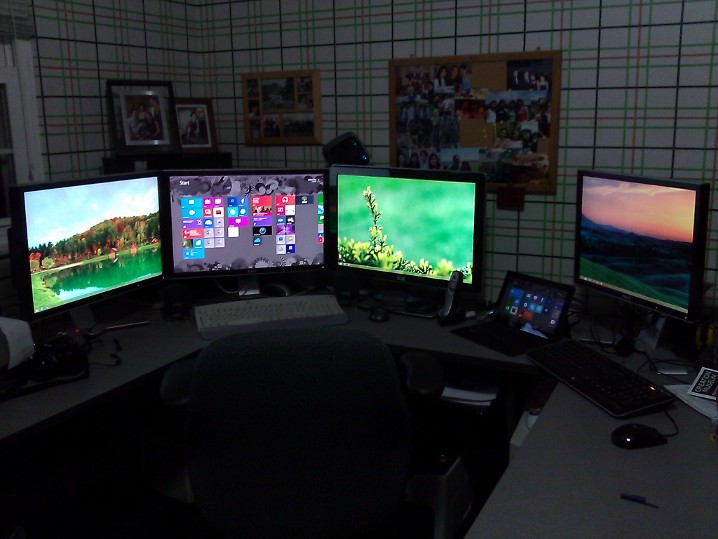
 The battery life for the Surface is great - pretty similar to iPad, about 9 hours plus. So basically it can easily last the whole day. I brought mine to the office last week and used it pretty much from the morning (around 9am) until end of day (around 4:30pm) without connecting it to its charger and with probably 10% left at the end of the day. This was using the Surface connected to an external monitor, with a USB mouse, and used to connect to a VM via remote desktop all day. You can see the setup in the picture on the right.
 This kind of battery life is pretty awesome because that means that I don't have to bring my charger every time. I can feel securely that it won't be running out of juice and it will last the whole day - and eventually connect it to the charger at night.
The charger itself is great and it charges very very quickly. I'd say within a couple of hours or so - from almost empty to fully charged. I was certainly benefited from this when I had to charge my Surface on a rush before a trip. I don't know how many times I wished my phone or Tab or laptop would charge faster during a layover or at a friend's house or on the go.
EXTERNAL CONNECTIONS and KICKSTAND
The Surface also has a micro HDMI out port and a USB port. This means I can connect my monitor if needed (like when I am at the office), connect it to a projector for presentation, connect thousands of peripherals (such as my phone, mice, keyboard, printers, etc). The USB port is really awesome - I don't know how many times I wished there is a USB port for my Tab or Nexus 7 - so I can print or connect a keyboard or even a phone or camera to transfer files.
The Surface also has a micro-SD slot, so you can easily expand your space by just adding a micro-SD card - which is not an option for iPad or my Tab.
The kick-stand is absolutely-without-a-doubt-ultra-useful. In my Tab or my friends' iPad, there are no built-in stand. I thought the iPad cover that folds into a stand was brilliant, but the built-in kick-stand for the Surface is more awesome - especially when it is being used in the productive mode like a laptop.
MULTIPLE USER ACCOUNTS
Unlike a smartphone, where single account suffice, I need a mobile productivity tool that can be used with multiple user accounts. I want my emails to be separated from my wife's, my gamer score to be left alone by my son, and my setup not to be messed with. This feature allows me to customize my user experience according to me needs and my wife to her needs, and still allow a guest account for everybody else.Android supports that with the new 4.2 JellyBean update - but that will never come to my Tab. For iPad - this feature is non-existent.
The fact that I am also a Windows user on my desktop, this also means that my setup roams (using Microsoft Account), my music selection & playlists roam, etc - which is nice indeed.
OTHERS and NEED IMPROVEMENT
There are other things that make the Surface nice, such as the XBOX integration with Smartglass, XBOX music, Netflix, Hulu+, etc. Those are nice - but I'd say that those things are bonuses and not the main reason that attracted me to the Surface.The price point for the Surface is also right on. I think spending $1,000 for a Macbook Air (or more for Pro) for what I need is unnecessary and heedless spending. It is the same price point of an iPad/Galaxy Tab, but double the storage, and much much more productive-capable.
There are several things that Microsoft can still improve. The first one is related to my experience with the Touch Cover - where the seam came lose near the connector within 2 days after purchase. MS Support took care of me (with the help of Mr. Sinofsky via Twitter), but it was still disappointing that a product needs to be replaced that soon.
The magnetic connection to the charger is also not that great. It works awesomely when connected properly, but it is a bit of a pain to get it connected and won't snap with assurance (unlike the Covers) without really paying attention. The indicator light helps, but I wish it would have been easier.
The Windows Store needs more apps. It has most of the apps that I need, but I think the ecosystem will get better with more apps. More games, more productivity tools, more niche apps.
IS IT FOR YOU?
Well, isn't it the question? Depending on your needs and what you already invested, the answer can be "yes" or "no".Let's do the "NO"s first:
- If you already have a recent ultra-book (like Lenovo X1/X220/etc, ASUS Zenbook series, etc). I'd just upgrade your ultra-book to Windows 8 and be done with it.
- If you are looking to have one-powerful-machine-to-do-them-all. If this is your need (running Photoshop, doing software dev, running VMs, playing Starcraft 2, etc) then get a robust powerful laptop instead. The Surface will never be a full laptop replacement. Or wait for the Surface PRO.
- If you are already heavily invested in Apple lines (Macbook, iPad, iPhone with all their accessories). Unless you really want to "switch".
- Your needs are similar to mine: no laptop and have other computer to run other things, need MS Office, casual gamer, with no or little investments in other tablets. I think you'll love the Surface like I do.
- Want to update or replace your old netbook and your needs are quite basic, such as email and browsing, social (Facebook, Twitter), MS Office. There is no sense of wasting $1,400 for a Macbook Pro or $1,000 for a Macbook Air if that's all pretty much you need your computer to do.
- If you are a gamer and primarily looking for a casual gaming device. An iPad or Nintendo 3DS or PSP Vita is probably better for that - or even an Android tablet like the Nexus 7. This of course can change as the Windows Store are getting more and more apps/games.
- If you are a heavy XBOX 360 user. Smartglass is awesome and being able to watch a movie on your XBOX and then continue it on your Surface is cool. Or getting extra contents of the movie you are watching, the games you are playing, etc. But, Smartglass app for iOS, Android, and WindowsPhone should be able to do the same thing.
- If you want to switch from Apple to Windows.
- The rest of all other reasons that you can think of.
Topics:
contentment,
hardware,
review,
technology,
Windows
Tuesday, October 30, 2012
Nest Thermostat

Nest was not cheap ($250), especially compared to the typical programmable thermostat you find at the hardware store (~$75). Most people will say that "it's just a thermostat - why get an expensive one?" - and they are right in a way that the benefit is not that apparent right away. But after using it about a week or so, I never looked back.
So what sold me in the first place? After a year or so using it, what are my thoughts about it? This blog post will answer both questions.
 Top notch website
Have you ever been to the Nest's website? I urge you to go there - http://www.nest.com. Not only it is very well designed and easy to navigate - but it also absolutely informative. After reading some articles and watching some videos (all which are well made), it really answers all my questions and more. The videos put me at ease about doing a self installation or whether Nest will work my current furnace/AC with their compatibility checker.
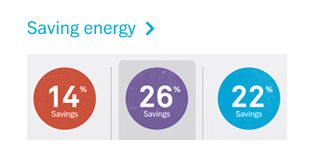
 There is also this "Living with Nest" page that pretty much explains how Nest actually work with your living habit, from the first day, the first week, first month, and eventually where Nest will stay out of your way and learn to understands your habits and adjust to them.
Killer Nest Web App
 Nest also has a web app. So once you connect your Nest
to your WiFi, register it and create an account, you can actually manage
your Nest from anywhere in the world with an internet connection.
Nest also has a web app. So once you connect your Nest
to your WiFi, register it and create an account, you can actually manage
your Nest from anywhere in the world with an internet connection. This is a killer feature. I can be at the office or my friend's place and lower down the temperature at my house or even turn it off. I can pre-heat my home on my way back from vacation or cool it down, etc.
The web app also allows you to manage your Nest settings such as Auto-Away & Away Temperatures, Schedule, Learning, Lock, etc. No more fiddling directly in the thermostat once you got Nest connected to the internet. Everything can be done via the web admin tool.

If you have multiple Nests in your home (to manage different units for multiple rooms etc), the web app also will identify each Nest individually, so you can control each of them independently.
I have to say that their website and web-support is superb. Probably the best I have seen and experienced. Sometimes I could not help showing it of to my friends. You can read more about their Web App here.
Mobile device support
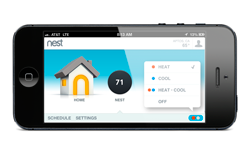
It took Nest a while to support Android tablet, but thankfully, the web app can be accessed quite easily using FireFox or Chrome using the desktop mode. Now, Nest released an update that works for my Galaxy Tab. Now - I am a Windows Phone use, so if you are reading this blog, Nest - can you make a Windows Phone app? You can read more about the mobile app for Nest here.
Nest Monthly Energy Report

Unlike typical marketing emails or spams, this email from Nest is actually useful and beneficial to help you in using your Nest better and saving more energy.
Getting this email is like getting a pad in the back about your energy saving and also motivate you to maximize your Nest instead of just simply leaving it as a programmable thermostat. It gives you a picture of your energy usage pattern and helps you to make adjustments to be more efficient.
Software updates and support
I'd say that Nest has better software updates support and support in general than my Android devices. In 1 year, my Nest has had 2 software/firmware updates - both were feature packed updates (as well as fixes etc), huge improvements for the web app, and continuous updates for mobile device apps. All in all, excellent software and firmware support.Secondly, their website is filled with articles, videos, and how-tos on about anything you can think of about Nest - from installation, troubleshooting, compatibility, and apps. This combined with responsive email & twitter support, and phone support - I certainly feel taken care of and satisfied. My hats off to them.
Oh yes, it comes with 2 years warranty too.
Topics:
contentment,
gadgets,
review,
technology
Tuesday, September 11, 2012
KOSS PortaPro Review
 When my full-size headphone was snapped in half several years ago, I was scrambling to find a new one. I got a newer similar model from a local store for around $20 - but then after several months, its cable broke and became basically a mono headphone. A friend of mine then gave me a KOSS portaPro. The portaPro is an on-ear headphone, which I have never used before - since all of my headphones were always full-size ones. So understandably, I was very skeptical about it. But since my banged-up mono broken headphone was my only other option so I started using it. It has been about 3 years now since I started using the portaPro - and I am still using it as my trusty headphone.
Awesome sound!
I still distinctly remember when I used it for the first time to listen to music (prior to that I was using it for listening to podcast), I was really blown away. The sound quality coming out from this seemingly dinky headphone is amazing. Yes, my old full-size headphones were cheap (less than $40) and obviously not BOSE or Beats or any of those fancy ones. But seriously, this portaPro was awesome in terms of sound quality. Clear and powerful bass, superb mid-range, balanced treble. I would say that the sound quality of this portaPro probably competes with the mid-range ($75-$150) full-size headphones (with no noise-cancelling).Cheap!
Since the portaPro was a gift, I did not know how much it cost - so I looked it up online on Amazon - and it was cheap (or at least A LOT cheaper than those fancy headphones). It is only about $45 (or less) - which is only 1/4 of the price of Beats ($199), 1/7 from Bose ($299), or 1/2 of any typical Sony headphones (~$100). Then you say it's because it's an on-ear, of course it's cheap. Yes, that might be true - but, I have tried other on-ear headphones (Logitech, Sony, Panasonic, Phillips) and none of them rival the sound quality of the portaPro. Truly, I think the combination of the sound quality and the economic price hits the sweet spot for me.Small size
The advantage of having the portaPro vs a full-size headphone is the small size. It fits easily into my laptop bag, my travel bag, or even my wife's purse. This is something I could not do with my full-size headphone - which means if I decide to carry it, I practically have to have it hanging on my neck all the time if not using it. The portaPro also folds - makes it even smaller.Last longer than my older headphones

After 3 years, I had to replace the foaming pads that cover the drivers. The old foaming are torn. I bought the foaming on Amazon and they install easily - just remove the old foaming, put new ones one - took about 3 minutes and done. No glue, no stitching, no hassle.
Now it feels like it's a new headphone again.
So if you are in the market for a headphone, I suggest you check out KOSS portaPro. I totally love mine and I am guessing you will be pleasantly surprise by it.
Topics:
contentment,
gadgets,
review,
technology
Monday, August 20, 2012
Installing Jelly Bean ROM to Galaxy Tab 10.1
Samsung is taking its time in making ICS available for Galaxy Tab 10.1. Since JellyBean has come out since June 2012, it will probably taking another year to get a JellyBean update from Samsung. Looking in the internet, there are JB (JellyBean) custom ROMs available for the Tab. Since running Honeycomb is really aggravating, lagging, and quite a pain - I decided to take the plunge, root, and install custom ROM. Another option is to just get a Nexus 7 device - which will cost $200 more than installing custom ROM.
So in this post, I will describe the step by step process in installing JB ROM into my Tab (from stock Honeycomb). Please note that there are risks involved when one is doing this - that one may "brick" the device, or the installation may fail and require further troubleshooting etc. So do it on your own risk - no guarantees from me. My experience was that the installation was smooth and without any glitch whatsoever. Please do not skip any steps - also make sure your battery is full or almost full. Part of the steps is wiping the data. So if you do not want to lose any data, make sure you back it up first.
1. ROOT (if yours is already rooted, you can skip this step)
Follow the steps from xda-developers here for rooting your device. The link above even has a video step-by-step guide.
2. OPTIONAL
At this point, I purchased ROM Manager App from the Google Play and update Clockwork Recovery to the latest version.
3. INSTALL JB

- Download 2 sets of files from xda-developers, look for the section like the image on the right:
- The custom ROM (select the one that applies to you)
- Google Apps
- Copy the JB package (both the ROM and the Google Apps zip files) to your tablet’s internal Tab memory
- Turn off Tab.
- Go to ClockworkMod Recovery by turn on the Tab while holding the Volume Up button.
- When the screen turns on, release the Power button but hold the Volume Up button until a menu shows up on the screen.
- Press Volume Down to select the recovery mode icon and then, press the Volume Up button to enter recovery.
- Create a backup of your current ROM. Select "backup and restore". Select "backup" again. This will initiate the backup process. Once it's done, select "go back" to go back to main menu.
- Select "wipe data/factory reset" (and confirm)
- Select "wipe cache partition" (and confirm)
- Select "advanced" -- "wipe dalvik cache" (and confirm)
- Select "mounts and storage" -- "format / system" (and confirm). Once done, go back to main menu
- Select "install zip from sd card" -- "choose zip from sd card" and select the JB zip file and then confirm selection. The ROM installation will start.
- Select "install zip from sd card" -- "choose zip from sd card" and select the Google Apps zip file and then confirm selection. The Apps installation will start
- Once done, select "go back" to the main menu and then select "reboot system now". DONE!
Topics:
Android,
Chrome,
contentment,
DIY,
gadgets,
Google,
technology
Wednesday, August 1, 2012
How to Remote Desktop to Win7 Home
In Windows 7, you can only Remote Desktop to Windows 7 Pro, Enterprise, or Ultimate. So, for most of home users who have Windows 7 Home Premium, there is no RDP into it. Just to be clear, all Windows 7 versions can initiate a connection, but only Pro, Ent, and Ultimate can host (read here for more).
So, one of my desktop that I use for Media Center is running Home Premium - and from time to time I do need to login to it to run updates, install drivers, troubleshoot, etc. Yes, I can do it from the TV, but that means putting keyboard & mouse - which I don't want to. There is a "hack" - which basically installing the host executable in the PC - but somehow when I tried, it did not work - although the forum chatter seems to indicate that this should be relatively easy. So anyway, I decided to just put a keyboard & mouse for the time being. Until about 2 months ago, when I discover Chrome Remote Desktop (BETA)!
What is Chrome Remote Desktop? It is a Chrome extension (a plugin for Chrome browser) that enables a computer (PC or Mac) with Chrome that also has the Chrome Remote Desktop extension installed to RDP to each other. So in my case, I just installed Chrome browser and then the extension in my Media Center PC. Run the extension, it asked for my permission, give it a password, and it's ready. Then I also installed the same extension on my main PC in my office. Run the extension and - VOILA - I can RDP to my Media Center PC (running Win7 Home Premium)!
Here is the step-by-step:
If you do not have Chrome installed, go download & install it here. Go to Chrome Web Store and search for "remote desktop" and you should see result like this:


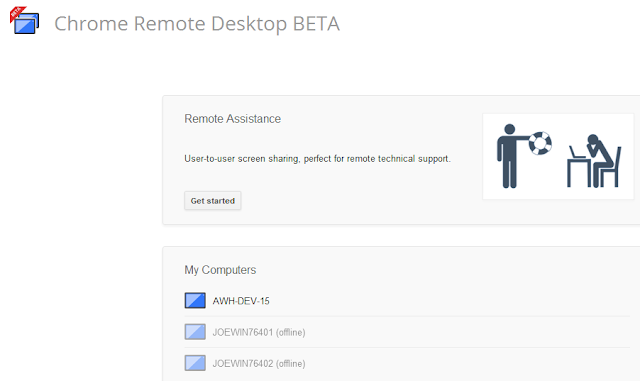
-- read more and comment ...
Here is the step-by-step:
If you do not have Chrome installed, go download & install it here. Go to Chrome Web Store and search for "remote desktop" and you should see result like this:

Click "ADD TO CHROME" and the download & installation of the extension should start. When it's done, you will see the Chrome Remote Desktop app icon shows up in your Chrome Apps.

Running the app for the first time, it will prompt you for allowing it access your computer. Click "Continue" here and then "Allow access" on the next screen.


Once you allow access, now it's ready to be setup for use. Click the "Get started" button.

To enable your computer to be connected to, click the "Enable remote connections" button. You will be asked to enter a PIN, which you will use every time you need to connect to the computer.


That is it - now it's ready! If you install and enable remote connections in more than 1 computer, they will get added the list automatically. The list is tied to your Google account (GMail/Google+).

Now do the same steps above in a different computer, now you have 2 PCs that are able to RDP to each other via web. Here is the kicker: since this is via port 80, or http, this means one does not need to tweak firewall rules, install special VPN software, get dynamic DNS address, etc. As long as the computer is turned on, the Chrome extension will manage all the plumbing underneath. All you need is a broadband connection, Chrome browser & extension, and your setup/PIN.
Topics:
Chrome,
technology,
Windows
Sunday, July 29, 2012
I am going PREPAID cellular plan ...
Currently, with T-Mobile, I am paying $49.99 family plan, which gives me 2 lines, 500 minutes, free T-Mobile to T-Mobile calls, free nights and weekends. I pay extra for my 5GB data plan ($25) and my wife is using the 200MB ($12). Plus another $4.99 for each messaging plan. So overall, I am paying around $100 per month. My family plan is an old plan (grandfathered), so I also get the full discount for new devices in I choose to extend the 2 year contract.
Now, my plan is not bad at all, $100 for 2 persons - it is actually considered to be quite awesome - since most my friends who have newer plans on T-Mobile (or other carriers) usually pay between $80 or more per person. So basically almost half of what most of my friends with smartphones are paying.
Now, let's consider the overall ownership cost over 2 years - since that is the length of the standard cellphone contract. If I pay $279 for each device (assuming Samsung Galaxy S3), add the monthly payment, over 2 years, I am paying about $2,950+. Of course, that is cheaper than my friends who is paying $110 per month for their family plan. But, I plan to reduce the overall cost some more. How? By going PREPAID!

To each their own, but after assessing my needs (getting some stats from my bills for the last 6+ months), I think getting the Monthly 4G plan for $30 will be sufficient for me (and my wife). This plan will get me 5GB data, unlimited text and 100 minutes voice. So for both of us, that will be $60 per month - without contract. There is a drawback to this - that if I buy a new device, I have to pay full price without any discount. So that means $600 for Samsung Galaxy S3. So in short, no contract, I am paying cheaper per month, but paying 3+ times IF buying a new device. But what is the overall 2 years cost of ownership? Let's assume we both buy GS3 and paying $30 Monthly 4G plan - which totaling $2,640 - a saving of $300 over 2 years. It looks a small saving on paper, but in reality, it is actually a pretty good deal. Let's list down the benefit:
- No contract. Only pay as needed. So the potential saving here is actually larger. If I think for the next month that I will be in a WiFi bubble, I may switch to $10 pay as you go ans save some more. If I am traveling, I can switch back to the Monthly 4G etc.
- In a contract deal, if I am not getting a new device once my contract is up - this means that I am giving free money to the carrier, since the cost of the phone is factored in the monthly bill. With no contract prepaid, I don't have that burden. This also means that if I elect to switch carrier or get a new cellphone/device, I don't have to wait until the contract is done.
- My wife data plan will get an upgrade, from 200MB per month to 5GB. Now, I am assuming that she needs that 5GB - if she does not (because of WiFi), she can switch to a cheaper pay-by-the-day based on usage.
- From 300 texts per month to unlimited texts. This is also assuming we need that. I mostly do not need it, but there is no plan with voice and data only.
- If spending $100 or more in 1 year, get a Gold status, which means 15% more minutes and your minutes can be used for a full year (instead of the regular 90 days).
- No overages!
T-Mobile also has Pay-As-You-Go plan (for voice prepaid) and Pay-By-The-Day plan (for use only when needed). Depending on your needs, these plans can potentially be cheaper than the Monthly 4G plan that I am planning to use.


Topics:
Android,
conviction,
gadgets,
materialism,
mobile,
review,
strategy,
technology
Tuesday, October 18, 2011
Windows Phone 7.5 Mango Review: Search
In Windows Phone 7.5, there are a plethora of new features that are integrated into search. Previously, it only allows you to basically go to Bing! and enter your text or keyword into the search box. Now, the search is deeply integrated and can seamlessly jump into apps if necessary. Not only that, there are also Music Search, Bing Vision, and Voice (Search).
Voice (Search)
With the Voice update in Mango, now you can hold the Home button and say stuff like "Call John" or "Text Jack" or "Open Maps". Along with all that commands, it also allows you to do searches with Voice - so you can say "Find Pizza".
This is very helpful for searching during driving. I have used this feature several times and it works pretty well. Plus, it's easy to enable, just hold the "Home" button and speak. Also, if you receive an SMS, you can say "Reply" or "Read" to reply or read respectively - and then dictate your message to the phone.
Android has had this feature for a while, but the Froyo, Gingerbread, and Honeycomb versions that I have used (HTC G2, Samsung Galaxy S, Samsung Galaxy Tab) were not accurate and cannot recognize non-western names. Let's see whether Ice Cream Sandwich will bring improvement on this. I was expecting Mango to be the same way - but I was surprised that it actually recognizes most of my contacts, including the ones with non-western names. It is not as impressive as Siri in iOS5 (yet), but it's not bad, not bad at all.
Music Search
Music Search is basically like running Shazam, but much better. There is no limit on searches, it also finds songs better by displaying artist, song title, and album, but also shows you where or how to play or buy it from the Marketplace.
Previously I used Shazam - which works OK, but the free version only provides limited functionality and music searches. The Mango Music Search however, is very simple to use and unlimited in usage. I also found out that it is actually more accurate (at least in my experience). After searching for music and getting a result, I can go to the Marketplace - and then either purchase & download or play the song. Since I have a Zune subscription, this works awesomely. The integration with the OS itself is also worth it - I do not have to open an app nor open the Marketplace separately.
Shazam is good, but the Music Search is better.
Bing Vision
Bing Vision allows you to search using the phone camera. It can recognize text, Tag code, UPC code, QR code, etc and display the product information at an instant. It also can search based on book cover, CD/DVD covers, and game covers. Initially I thought this is just a novelty or to just making search easier. But, not only it does make search easier (e.g. capture the cover of the book vs typing the title), but it can also capture text (like document scanning).
Search Result
Search result is now getting smarter. When I searched for "pizza", it automatically displayed the result in the "local" pivot area. I can swipe and go to the "web" area if I want, but the "local" area makes much more sense. Then if I select a search result from result, Mango brought me to the pivot card for the result (which is most likely a pizza restaurant) - which is filled with the contact information, hours, neighborhood, etc. I can swipe and see all the reviews aggregated for the restaurant. Another swipe got me to the "apps" pivot area - which enables me to launch related apps such as Foursquare or Twitter etc via App Connect.
When I searched for "moneyball", it displayed the result in the "web" area, with local showing cinemas on the top. I can that one of those if I want to watch the movie at the local theater which then - just like the restaurant - shows its own hub, with "about", "showtimes", and "apps".
App Connect
App Connect is super useful. So basically instead of launching an app from the Start or Home screen, I can seamlessly launch relevant apps from connected apps/area. One of those connected area is the search result screen. So for example, if I want to watch the trailer for "Moneyball", after searching it on Bing, I can just go to the "apps" pivot area and tap on "Flixster" or "IMDB", which will launch directly to the the Moneyball page within the respective app. Previously before Mango - or on iOS or Android - I will have to go to "Home" and open up "Flixster" and navigate to the "Moneyball" page.
There is a video about App Connect in the Bing blog, you can watch it here.
So overall the search experience has tremendously improved. I am using search more and more on my phone now and looking for further future improvement in this area in the next Tango release.
My other WP Mango Reviews:
Windows Phone 7.5 Mango Review: Update Process
Windows Phone 7.5 Mango Review: Email & Calendar
Windows Phone 7.5 Mango Review: People & Me
-- read more and comment ...
Topics:
mobile,
review,
technology,
WP7
Sunday, October 2, 2011
Windows Phone 7.5 Mango Review: Email & Calendar
This is the 3rd part of my Windows Phone 7.5 Mango reviews - which talks about Email. See previous reviews here and here. In the initial release of Windows Phone, email was already quite good. It syncs seamlessly with my Exchange account, Hotmail, GMail, etc. Each inbox will create a different "email app" and I can pin each one of those to the Home screen.
I can also be selective about how to sync the folders, how long should it went back to sync, etc. The interface was a delight to use - the typography was good, text and formatting are pleasing, attachment are supported, and the notifications of new emails on the Live Tiles are purely awesome.
Overall, it was a good and nice experience. So what did Mango bring to the table?
Email
Mango brought quite robust improvements for Email. First of all, email conversation is now threaded. This is a must have feature nowadays. The top email shows a bit summary of how many emails are in the thread and how many are unread. You can open/close the thread by tapping on the top email. For selecting the whole thread, you can select the top email (just like before) by tapping on the left of the email - or you can select individual emails within the thread.
Another new feature is now there is an option for combined/linked inbox. So instead of having separate "email app" for Outlook/Exchange, Hotmail and YahooMail and GMail etc, now you can linked them anyway you want. For me, I separate my work email (Exchange) and my personal emails (Hotmail & GMail - into a linked inbox). So now, instead of having 3 Live Tiles on my Start/Home screen, I have 2 tiles. The linked inbox has a separate icon and you can name it what ever you want.
When composing a new email from a linked inbox, it will ask you which email account to use for sending the email. Another cool feature here is that now you can email to "Group". So instead of typing the recipients one by one, you can just email to "Family" group and Mango understands that and will insert the email for the people in the group. Very neat and certainly something that I will use a lot - since I do a lot of group emails (such as to family/church groups/work etc).
Calendar
The Calendar has a subtle but awesome feature upgrades and additions, mainly multi-calendar support, Facebook calendar integration, and sync with Tasks/To-Do in Exchange. Multi- calendar support means you can view events from other calendars within the same calendar, filter them, color coded, etc. It also auto-sync with your Windows Live calendars, which include US Holiday calendar. When creating an event, you can specify which calendar the new event belongs and syncs to. If you are integrating your Facebook account, this will then include your Facebook events.
Mango also natively allows To-Do list or Task list, and if you put a due date, it will automatically put it in the calendar. If you are using Exchange, then there is an option to sync it with your Exchange Tasks.
There is also a new set of APIs that allows apps that take advantage of the built-in gyro, accelerometer, etc. to be able to communicate with the calendar.
Overall for Emails and Calendar, I was happy before - but now I am happier. There are several things that I found that I hope Microsoft will address or add in the future for Emails and Calendar, but the current Mango features really do provide the essence of what I need.
My other WP Mango Reviews:
Windows Phone 7.5 Mango Review: Update Process
Windows Phone 7.5 Mango Review: People & Me
Windows Phone 7.5 Mango Review: Search
-- read more and comment ...
Topics:
review,
technology,
WP7
Sunday, July 10, 2011
Samsung Galaxy Tab (10.1 Honeycomb) Experience
I got my Galaxy Tab as a gift from attending Google I/O conference back in May 2011. I have been using it pretty much daily, brought it along on a family vacation with my family for a week - and my wife and son also have been using it to check emails, play games, browse around, etc.
When the Tab was given to us by Google, it had Honeycomb 3.0 on it - since then it has been upgraded to Honeycomb 3.1. I won't bother you with detailed specs - you can see it here, but I will write about my personal experience with it from the last 2 months.
-- read more and comment ...
Topics:
Android,
contentment,
gadgets,
hardware,
review,
technology,
web
Sunday, April 10, 2011
Utilizing pass-by-ref Parameters
I recently helped a friend of mine code an application and at some point I created a method using a pass-by-reference parameter. Apparently this is new to him. I asked several other programmer friends that I know and most of them either know about it but never use it or don't know about it. So - here is a post about it.
To illustrate the usage of pass-by-reference, I will create to a simplistic example - where we want to calculate a loan amortization: with initial loan, interest rate, and loan period - and resulting in: monthly payment and total interest over loan term
So in code, without the pass-by-reference, we have to do this somewhat in 2 steps/methods:
    decimal monthlyPayment = CalculateMonthlyPayment(initialLoan, rate, period);
    decimal totalInterest = CalculateTotalInterest(initialLoan, rate, period);
With the definitions:public decimal CalculateMonthlyPayment(decimal initialLoan, double rate, int period) {
decimal result;
// calculate monthly payment
return result;
}
public decimal CalculateTotalInterest(decimal initialLoan, double rate, int period) {
decimal result;
// calculate interest
return result;
}
-- read more and comment ...
Topics:
C#,
technology,
Visual Studio
Thursday, February 17, 2011
Mowbol Weekly: Using Corona
Mowbol.com (AWH's sister company), a company that focuses on mobile development recently did a series of videos about mobile platform. The last one was particularly interesting as it discussed using Corona to build a code once publish for both Android & iOS.
Chris Slee talks about Corona and the new Mowbol channel framework from mowbol.com.
So if you need to get into the app store fast on Android phones and tablets, iPhones, iPads, we need to talk.
You can go to mowbol's website here: http://www.mowbol.com
Mowbol also has a Youtube channel under mowboldotcom: http://www.youtube.com/user/mowboldotcom
-- read more and comment ...
Topics:
mobile,
technology
Friday, January 7, 2011
Microsoft Certification exams
My employer (AWH - http://www.awh.net) encourages us (the employees) to take MS certifications. Not only this will benefit the company in maintaining our status as a Gold Partner, but also will benefit us as far as knowledge, new technology, etc. Plus the certifications are attached to the individual, so if you change jobs, those certifications certainly belong in your resume and can be leveraging points.
AWH will pay for the tests, including first failure. So if I take a test and fail, and then retake the test and pass, AWH will cover both exams. So I have to pass before the reimbursement can come through.
Anyway, so last November, I saw a promotion on Prometric's website for a 2/3/4/5 exam packets with discounted price and FREE retakes for each exams in the packet. With that good deal in mind, I decided that I will set a goal in this area: getting a MCPD - Microsoft Certified Professional Developer. This certification requires 4 exams:
I took the first test early in December and passed it quite easily. Since ASP.NET is what I use daily, most of the questions in the test are familiar to me and I can answer them correctly.
I scheduled to take the ADO.NET test on Dec 23rd, but when I came to the facility, it was closed. I was not notified of any closing and Prometric also was not aware of the closing of the local facility (New Horizons). Prometric was able to reschedule me for Dec 27th at a different facility. I failed my ADO.NET test - probably by 2 or 3 questions, it was so close. Although I use ADO.NET stuff pretty much daily, but there are some things in there that are pretty new to me and I have not used them in production quality code - like Entity Framework. Those questions stumped me and resulting in a failing grade. Thank God for the free retake!
So I studied more EF, practice making some projects with with etc and retake the test on December 29th. I passed.
So next up is WCF - scheduled for Jan 12th. Hopefully by end of Feb 2011, I will have become an MCPD.
-- read more and comment ...
Topics:
ADO.NET,
AJAX,
ASP.NET,
technology,
Visual Studio
Tuesday, December 28, 2010
T-Mobile Customer Experience
One of my personal conviction is generosity. So that conviction, combined with good service (especially paid ones) usually produce a desire to reward the service giver beyond the typical means. I personally don't think this is unique to me - for example in tipping your servers in a restaurant, when you are getting excellent service, some people will give more tip, etc.
In this particular experience, I was getting superb service from T-Mobile and this blog post is a way of rewarding them of their excellent efforts to me as a customer.
-- read more and comment ...
Topics:
contentment,
gadgets,
performance,
review,
technology
Tuesday, November 23, 2010
Windows Phone 7 Experience
 About 2 weeks ago, I bought a new cell phone. I am a T-Mobile customer (T-Mo FTW!) so I renewed my contract and got the phone at a discounted price. My previous phone was a T-Mobile G1 (the 1st Google/Android phone) and I bought it used from a friend of mine. That device served me extremely well and it is still running well and my wife is using it.
 So for my new phone, I bought an HTC HD7, running the new Windows Phone 7. This blog post is about my experience with it so far - what I like about it, dislike, a little bit comparison to Android, etc. Nothing really scientific, but just sharing my experience, including an app development experience (since I am a software engineer). Obviously, my experience is a combined experience between the hardware (HTC HD7), the OS (WP7) - but when necessary I will mention the specifics.
What I REALLY Like
- This is something that is hard to describe, but there is such a pleasant feeling in using the device with the WP7. Every scroll is buttery smooth, no lag, no stutter, snappy, and my user-experience for the 80% of my usage of the phone is superb (this includes making phone calls, receiving calls, speaker phone, contacts, searches, calendar, email syncs, twitter, browsing).
- Panoramic view is totally awesome. It helps to go through things quickly, less click/swipe/back, etc. The panoramic background in some hubs are also contributing to increase the niceness and pleasant of using the device. All this being carried in a 4.3" screen - superb. iPhone 4 screen is better with the Retine Display, but HTC HD7's is bigger.
- The lock screen is also surprisingly well designed. I did not think about this before - but then I realized that showing all my notifications & next event on the lock screen is awesome! One of my cell-phone related habit is to look at my phone to see the time AND to see what is the next item in my calendar - which totally fits into the WP7 paradigm (and I have a feeling that I am not the only one with that habit).
- The email interface is awesome, every email is delineated well, clear text, eye-pleasing font, easy to use (virtual) keyboard, the sync is also fast, and does not lock the screen, excellent progress bar with the dots, etc. As far as email related experience, this is probably the best I have seen (compared to iPhone/iPod Touch, WinMo, BB, Android).
- The Calendar interface is also very robust and well done. It syncs seamless with my Exchange calendar, displays the next "event" on "Home" and "lock" screens, and for the extra kick, the calendar date "flips" when you scroll the events in the event list. Haha - I thought that was small but slick nonetheless.
- The "Tile" or the "Metro" design. I though it is awesomely done and intuitive. I am a bit biased to big icons - so the tile suits me well. Some also animate (changes in photos, people, news images, etc) - which added some "wow" factor to it. Some provide crucial information: the weather app gives the current weather summary, Outlook shows number of new messages, etc. There is no extra "widget" or differentiation between "widget" and "app shortcut" (like in Android) - which makes things simpler.
- The Media hub is really nice, it combines radio (like iHeartRadio), YouTube streams, your videos, music, podcasts, etc, and organized well via panoramic views. They just works seamlessly. No need to open YouTube app separately or media player app or radio app separately. One hub and everything works.
- Zune software. I HATE itunes - and Zune is awesome. Much better design, fast, unobtrusive updates, AND YOU CAN SYNC WITH MULTIPLE COMPUTERS! Yeay! Also, sync media over the air!
- Developing an app for WP7 is very very easy. Well I am a bit biased since I use Microsoft tools for my work. But here is the thing - I experienced quite some pain to get Android/iPhone dev environment to be up and running and I did created a some kind of "hello world" app, but nothing beyond that. With WP7, in 2+ hours I cranked out a panoramic RSS reader with style and all. Certainly (subjectively) a huge added value for me.
- XBOX Live is really cool. You can create/modify your Avatar from the phone, play some games, sync accomplishments, etc. But, since I am not a big XBOX Live player, I don't use this feature as much.
- Instead of paying per music/album, Zune allows you to pay subscription based: A $14.99 / mo gives you unlimited access to millions of songs you can stream on your PC, Xbox 360, Windows Phone 7, or Zune HD - AND you get to keep 10 per month FOR FREE FOREVER!
- The WP7 OS is always stock and all the bloatware from carriers can always be uninstalled just like any other app without rooting or hack. This was not my experience with Android or WinMo.
- WP7 Bing's voice search/command seems to be able to pick up my voice better compared to my old Android. I don't think this is a big deal - could be just because my G1 can't go beyond Android 1.6. I think Froyo most likely has better support for this.
- The robust kick-stand in HTC HD7. It's awesome when watching videos or reading on a table.
- The camera is nice. Being able to take 720p video and take a 5mpix photos are good features to have. Plus, the camera software is really fast - you can go from "lock" to "save picture" in about 5 seconds or less. Although I consider this as "not as important" for now, but I do see that I take pictures more because of the quickness or the camera & its ease of use.
- Marketplace. It needs to differentiate the search between music, apps, games, etc. Right now, when I am searching for "News", it gives me ALL related with "news" instead of contextual search result. I am fine with the "all" search and there are times when it is useful, but there needs to be specific search filter too.
- Map & navigation. Bing maps in WP7 is awesome and slick, but Android's turn by turn saved my ass multiple times. I heard some rumors that this is coming out in SP1 in Q1 2011 - at least I hope so.
- Need more apps, FREE apps. I want my free "Alchemy" or "Angry Bird" like in Android ... Or QR code reader, Google Sky Map. More apps ... WP7 apps availability is nothing compared to iPhone or Android.
- Twitter integration to People, like Facebook or MySpace or LinkedIn
- Phone wide search. Search people, docs, emails, etc from a single place.
- Windows Phone 7 - for those of you who are skeptical, I suggest you to try it. I was too a skeptics, but I am sold out now. Yes, it is not perfect, has room for improvement, but it is my device of choice for now.
- Android, probably the G2 - fast with HSPA+, excellent keyboard, stock Froyo, loaded with free apps, nice slick phone. (Or if you are on Verizon, go with Droid X)
- iPhone - only if iPhone is available outside AT&T.
-- read more and comment ...
Topics:
contentment,
gadgets,
review,
Silverlight,
technology,
WP7
Subscribe to:
Posts (Atom)


 Posts
Posts


