Showing posts with label WebForm. Show all posts

Wednesday, April 10, 2013

Handling 404 Error in ASP.NET MVC

In ASP.NET Web Forms, handling 404 errors are easy - which is basically a web.config setting. In ASP.NET MVC, it is a bit more complicated. Why is it more complicated? In comparison, everything is seemingly easier in MVC than WebForm.

It is more complicated mainly because of Routing. In WebForm, most 404 occurs because of non-existent file and each UR: is usually mapped to a particular file (aspx). With MVC, that is not the case. All requests are handled by the Routing table and based on that it will invoke appropriate controller and actions etc. Secondly, our basic default route usually is quite common ({controller}/{action}/{id}) - therefore most URL request will be caught by this route.

So, let's dive in on how can we do proper handling of 404 errors with ASP.NET MVC.

TURN ON CUSTOM ERROR IN WEB.CONFIG

    <customErrors mode="On" defaultRedirect="~/Error/Error">
      <error statusCode="404" redirect="~/Error/Http404" />
    </customErrors>

DECLARE  DETAIL ROUTES MAPPED IN ROUTE TABLE

So instead of just using the default route:
   routes.MapRoute(
      name: "Default",
      url: "{controller}/{action}/{id}",
      defaults: new { controller = "Home", action = "Index", id = UrlParameter.Optional }
   );
Declare all your intended route explicitly and create a "catch-all" to handle non-matching route - which basically a 404. In MVC, a 404 can happen when you try to access a URL where the there is no controller for. This code in the routing table handles that scenario.
   routes.MapRoute(
      name: "Account",
      url: "Account/{action}/{id}",
      defaults: new { controller = "Account", action = "Index", id = UrlParameter.Optional }
   );

   routes.MapRoute(
      name: "Home",
      url: "Home/{action}/{id}",
      defaults: new { controller = "Home", action = "Index", id = UrlParameter.Optional }
   );

   routes.MapRoute(
      name: "Admin",
      url: "Admin/{action}/{id}",
      defaults: new { controller = "Admin", action = "Index", id = UrlParameter.Optional }
   );

   routes.MapRoute(
      name: "404-PageNotFound",
      url: "{*url}",
      defaults: new { controller = "Home", action = "Http404" }
   );

OVERRIDE HANDLEUNKNOWNACTION IN BASECONTROLLER CLASS

Create a Controller base class that every controller in your application inherits from. In that base controller class, override HandleUnknownAction method. Now, another scenario that a 404 may happen is that when the controller exists, but there is no action for it. In this case, the routing table will not be able to trap it easily - but the controller class has a method that handle that.
    [AllowAnonymous]
    public class ErrorController : Controller
    {
        protected override void HandleUnknownAction(string actionName)
        {
            if (this.GetType() != typeof(ErrorController))
            {
                var errorRoute = new RouteData();
                errorRoute.Values.Add("controller", "Error");
                errorRoute.Values.Add("action", "Http404");
                errorRoute.Values.Add("url", HttpContext.Request.Url.OriginalString);
 
                View("Http404").ExecuteResult(this.ControllerContext);
            }
        }
 
        public ActionResult Http404()
        {
            return View();
        }
 
        public ActionResult Error()
        {
            return View();
        }
    }

CREATE CORRESPONDING VIEWS

View for generic error: Error.chtml
@model System.Web.Mvc.HandleErrorInfo
 
@{
    ViewBag.Title = "Error";
}
 
<hgroup class="title">
    <h1 class="error">Error.</h1>
    <br />
    <h2 class="error">An error occurred while processing your request.</h2>
    @if (Request.IsLocal)
    {
        <p>
            @Model.Exception.StackTrace
        </p>
    }
    else
    {
        <h3>@Model.Exception.Message</h3>
    }
</hgroup>
View for 404 error: Http404.chtml
@model System.Web.Mvc.HandleErrorInfo
 
@{
    ViewBag.Title = "404 Error: Page Not Found";
}
<hgroup class="title">
    <h1 class="error">We Couldn't Find Your Page! (404 Error)</h1><br />
    <h2 class="error">Unfortunately, the page you've requested cannot be displayed. </h2><br />
    <h2>It appears that you've lost your way either through an outdated link <br />or a typo on the page you were trying to reach.</h2>    
</hgroup>
-- read more and comment ...

Sunday, April 8, 2012

Boost Performance Using Caching

Caching is widely used for static files (like javascript files, css, etc). All browser support client-side caching for these static files. IIS also supports server-side caching. Caching done right can tremendously improve web application serving performance exponentially.

Let's consider this scenario. You have a static html page - let's say this page: http://www.google.com/intl/en/about/index.html. The payload of this page is about 9k bytes. Although it is very small, but payload is still payload. If nothing is cache, every time we go to that page, our browser have to download 9k bytes of data. Now we turn on browser caching, the first time we go to that page, we will download the full 9k bytes of data. But the subsequent visit to that page will load from browser cache. Look at the comparison of network traffic below (the top is the first visit and the below image is the subsequent visit):


The http status code "200" means successful retrieval from the web server and "304" means that content has not been modified therefore doing retrieval from local browser cache. As we see, the data transmitted through the internet or network was 40 times smaller (218B vs 9.5KB) and the time taken is also 5 times faster (47ms vs 203ms) on the subsequent visit. This performance boost is caused by browser caching. Now imagine if we do this to a more complicated page, with all the css files, javascript files, and more images - the performance gain can be quite significant.

There is also a different type of caching called data caching (which I used in application in this blog post about Session variable performance) - which basically means that the application is storing the data retrieved temporarily in memory instead of doing a data retrieval from the database. The benefit of this type of caching is that retrieval from memory is much faster compared to database query/retrieval.

In this post, I will focus on the browser caching and write about data caching in the future post.

Browser caching is actually pretty easy. In short, you need add an "expire" header. The header makes these parts of the website to be cacheable in the client browsers. I usually set an expiration for 30 days after the components were first cache. This means that the first time that component is downloaded into the client browser, it will store itself in the browser cache and reuse it again and again when needed until 30 days have elapsed. On the 31st day, it will discard the cached version and retrieve a new one from the server.

In .NET development, you can set this expiration in a couple ways - by code or via IIS. Both of these approaches will actually do the same thing in the end, so it does not really matter that much, but it's good to know.

If you want to do this by code, put a web.config file in the folder of static files you want to cache. For example, if you have an "images" folder, or "scripts" folder - put this web.config file in that folder. In the screen shot, I have a "Contents" folder, where all my images and css files. Then inside the web.config file, I set the clientCache element with my expiration values.
<?xml version="1.0" encoding="UTF-8"?>
<configuration>
    <system.webServer>
        <staticContent>
            <clientCache 
                cacheControlMode="UseMaxAge" 
                cacheControlMaxAge="30.00:00:00" />
        </staticContent>
    </system.webServer>
</configuration>

If you want to it via IIS, open the website folder that you want to apply and click or highlight the folder of the files that you want to be cached. I am using the same folder as above - the "contents" folder.

Then open/double-click the "HTTP Response Header" feature.

Then click "Set Common Headers..." on the right pane.

This will launch "Set Common HTTP Response Headers" window and you can set the expiration values within this window. Once you hit "OK", what IIS will do is create a web.config file for you - creating the a similar result as the code/manual approach above.

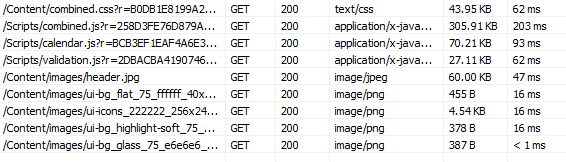
So how is the result - at least for my web application? Here is a screen shot of the payload and timing before caching, or this is the initial load before browser caching takes effect. Totaling 523KB of data for just scripts and image files, taking around 515 ms.
Now, here is the result on the subsequent request, with the caching applied. Totaling 1.8KB of data, taking around 37ms.
So in the end, the payload is 20X smaller and the time is about 14X faster. Quite a big pay off for a small change. Half a second may not seem much, but it does bring a lot of user satisfaction when their experience in using your web application is seamless and without delay. Jeff Atwood wrote excellently in his blog post: Performance is a Feature.

Additional readings:
-- read more and comment ...

Wednesday, February 17, 2010

Using ASP.NET Chart Controls in ASP.NET MVC

In the past, I blogged about using Google Visualization to render charts with ASP.NET MVC here. It's pretty easy, it works, and fast. What if you do not want to use Google Visualization / javascripts to make your charts? Well, Microsoft released ASP.NET Charting Controls late 2008 and this blog post will discuss several options you can have in using it with ASP.NET MVC.
There are several ways you can do this (that I have tried/used):

  1. Generating and rendering the chart in the controller and returning it as a FileResult using MemoryStream
  2. Generating the chart in the controller and put it in the view data and let the aspx/ascx renders it using the webform control
There are advantages and disadvantages for both approaches. Using the MemoryStream approach works everytime, but it does not render the mapping, so it does not attach url, tooltip, etc on the legend and the chart by default. You have to do those things manually.

Now using the webform control gives you all the bells and whistles (url, tooltip, label, etc) - no extra work needed. BUT - in my experience, it does not work if you run your MVC project under a virtual path. For example, if you run your project under root, such as http://localhost:2000/Home/Index - it will work. But if you then go to the Project Property window in the solution explorer in VS 2008, go the the "Web" tab, and set a virtual path, and build and run (i.e. http://localhost:2000/Chart/Home/Index) - it will break. When it runs, it will give you "Failed to map the path '/ChartImg.axd'". I am still unable to solve this problem yet - you can see my StackOverflow question here.

Before I show you my code, I have to give credit to Mike Ceranski - he blogged about how to use the webform control in rendering ASP.NET chart - in which his approach become the one I used in my projects and become a partial subject of this blog post.

You will need to download a couple of things to get started:

First, you will need to prepare your web.config by adding these lines:
 

    ....
    <appsettings>
        <add key="RenderMode" value="MEMORYSTREAM" />
        <add key="ChartImageHandler" value="privateImages=false;storage=file;timeout=20;deleteAfterServicing=false;url=/App_Data/;WebDevServerUseConfigSettings=true;"/>
    </appSettings>
    ....
    <system.web>
        <httphandlers>
            <add verb="*" path="ChartImg.axd" type="System.Web.UI.DataVisualization.Charting.ChartHttpHandler, System.Web.DataVisualization, Version=3.5.0.0, Culture=neutral, PublicKeyToken=31bf3856ad364e35" validate="false"/>
        </httpHandlers>
    </system.web>
    ....
In your development environment, when running using VS 2008 by hitting F5, the images will always be rendered in memory regardless what you put in the appSettings, unless you are including the "WebDevServerUseConfigSettings=true;" in there.

You can also read more about the possible enumerations and values for the appSettings here.

Now, the HTML:
 
<%         
    if (ConfigurationManager.AppSettings["RenderMode"] == "MEMORYSTREAM") {
        Response.Write("");
    } else {
        myChart.Controls.Add(ViewData["Chart"] as Chart);
    }
%>


The controller code:
 
public ActionResult Index() {
    ViewData["Message"] = "Welcome to ASP.NET MVC!";

    if (ConfigurationManager.AppSettings["RenderMode"] != "MEMORYSTREAM") {
        Chart myChart = CreateChart();
        ViewData["Chart"] = myChart;
    }
    return View();
}

public ActionResult Chart() {
    using (var ms = new MemoryStream()) {
        Chart myChart = CreateChart();
        myChart.SaveImage(ms, ChartImageFormat.Png);
        ms.Seek(0, SeekOrigin.Begin);
        return File(ms.ToArray(), "image/png", "mychart.png");
    }
}

private Chart CreateChart() {
    Chart chart = new Chart();
    chart.Width = 350;
    chart.Height = 300;
    chart.Attributes.Add("align", "left");

    chart.Titles.Add("MY CHART"); // Display a Title  
    chart.ChartAreas.Add(new ChartArea());

    chart.Series.Add(new Series());

    chart.Legends.Add(new Legend("MY CHART"));
    chart.Legends[0].TableStyle = LegendTableStyle.Auto;
    chart.Legends[0].Docking = Docking.Bottom;
    chart.Series[0].ChartType = SeriesChartType.Pie;

    for (int i = 0; i < 10; i++) {
        string x = "MEMBER " + (i + 1).ToString();
        decimal y = ChartTest.Models.Utility.RandomNumber(1, 100);
        int memberId = i;
        int point = chart.Series[0].Points.AddXY(x, y);
        DataPoint dPoint = chart.Series[0].Points[point];
        dPoint.Url = "/Member/Detail/" + memberId.ToString();
        dPoint.ToolTip = x + ": #VALY";
        dPoint.LegendText = "#VALX: #VALY";
        dPoint.LegendUrl = "/Member/Detail/" + memberId.ToString();
        dPoint.LegendToolTip = "Click to view " + x + "'s information...";
    }

    chart.Series[0].Legend = "MY CHART";
    return chart;
}
Now, depending on how your "RenderMode" setting is in the web.config, it will either render the chart using approach #1 (memory stream) or #2 (using webform control).

Additional readings/resources:
-- read more and comment ...

Friday, May 29, 2009

URLRewritter & .NET 3.5 SP1

In one of our project, we encountered this error when we pushed our code to the server:

Validation of viewstate MAC failed. If this application is hosted by a Web Farm or cluster, ensure that configuration specifies the same validationKey and validation algorithm. AutoGenerate cannot be used in a cluster.

Our web server is a stand alone server, not a cluster/web-farm. So after digging around, there are multiple issues that related to our problem that can ultimately cause this error to show up:
1. From here: WebForm starts paying attention to the "action" attribute of the form tag in .NET 3.5 SP 1. So, if they are unmatched, this error will be generated.
2. We use URLRewritter, in which means that our URL in the location bar is different (modified) than the one in the action attribute.
3. In IIS7 or VS 2008 emulator, this problem cannot be replicated

There are also other issues that can cause this error (but they are not related to my project - and you can read about them here and here.

So, how did I solve my problem? I can just simply upgrade my web server to IIS7, but that was not an option when I was working on this. Here are the things that I did:
1. Add event handler to blank out the form action from global.asax.vb file for each request (read here)
2. Change form tag into the one supplied by URL Rewritter (read here)

Those 2 steps provide me with a URL that is identical in my action attribute on the form as well a consistent URL - which mean ViewState is valid!
-- read more and comment ...